
How to enable Multi-Factor Authentication
Multi-factor authentication (MFA) is a security measure that requires admins to complete two forms of verification to login and manage your campaigns. You can set up MFA to protect your Chuffed account and add an additional layer of security for admins.
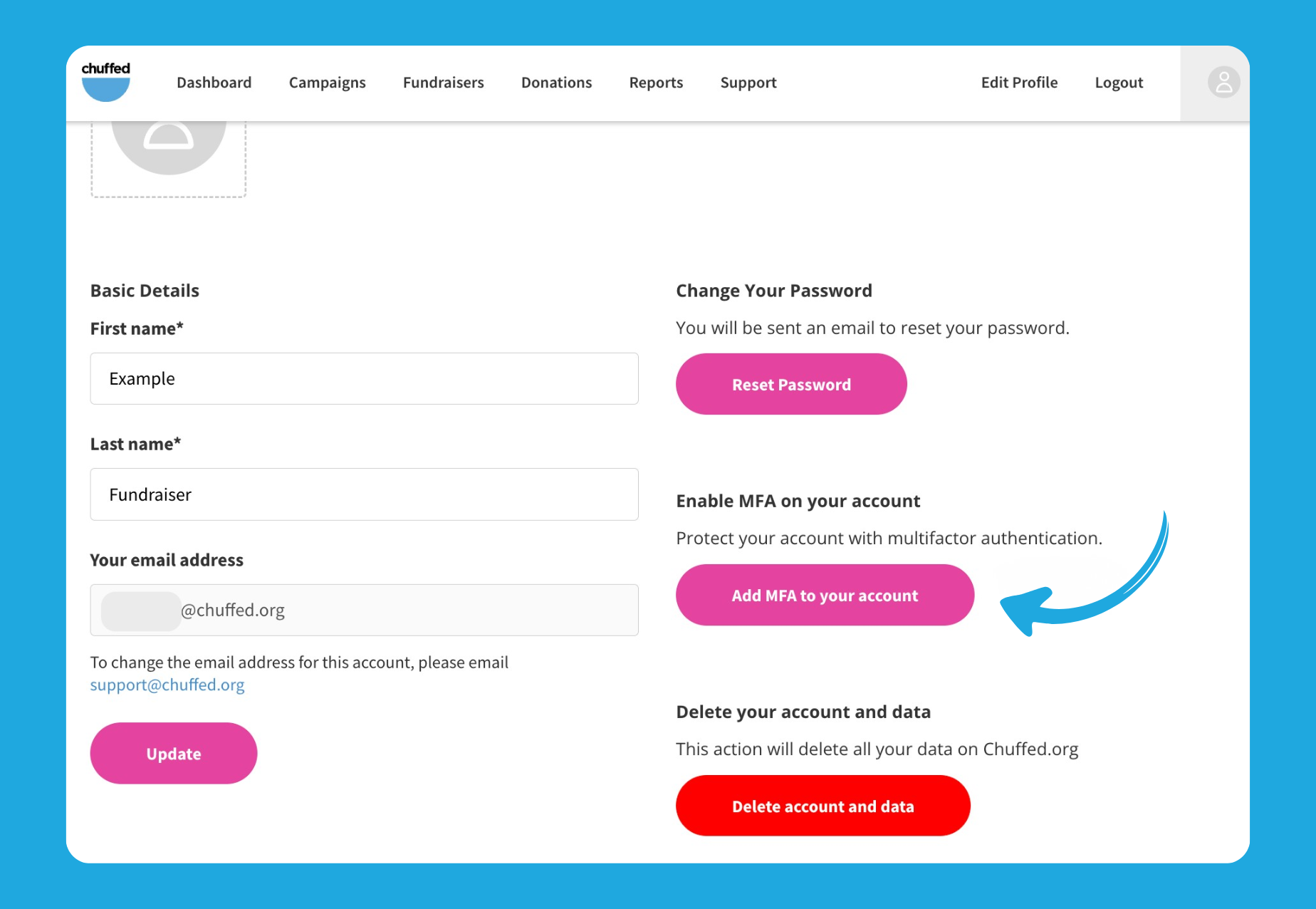
Setting up Multi-factor authentication
Ensure you are logged into your Chuffed account
Click ‘Edit Profile’ in the top right of your menu
Scroll down to the Enable MFA on your account section and click the button to ‘Add MFA to your account’
A modal will open with a QR code - Scan the QR code using your authenticator app*
*If you do not have an Authenticator app already, you can Download an authenticator app like Google Authenticator, Authy, Microsoft Authenticator.
Once added, click ‘Next’ to proceed
You’ll be prompted to enroll in MFA - enter your authenticator code and click Next to submit
Once your verification is successful, you’ll be supplied a list of recovery codes to save in case you’re unable to use your authenticator app
Save your recovery codes and click Done to close the modal
You should now see MFA enabled on your Edit Profile page
Commonly asked questions
Do donors need to set up MFA?
No, Donors don’t need to set up MFA but they are able to enable MFA on their accounts when managing their donations.
Do I need to set up MFA?
No, enabling MFA is optional - however we strongly recommend it! Setting up MFA is an effective way to protect your campaign and data.
What happens if I don’t set up MFA?
Adding MFA to your account is a precautionary security measure. If you don’t set up MFA, you will still be able to access your account and continue to manage your campaigns. From 24th February 2026, MFA will be required to access personally identifiable information (PII) within your campaign. This includes donation data in your reports and integrations.
What happens if I no longer have access to my Authenticator App?
If you’re no longer able to use your Authenticator App to verify your MFA, you can use one of the Recovery codes supplied to you when you first set up MFA.
What If I lost my Recovery codes and can’t login?
You can reach out to support@chuffed.org from the email you use to login and our support team will be able to assist further.