
How to create a Fundraiser page
What is a fundraiser?
A fundraiser is your own dedicated page where you can collect donations on behalf of a campaign. Once created, share your page to start raising funds — any donations you receive will be reflected on your personal fundraiser and automatically contribute to the campaign's overall fundraising total.
How to create an individual fundraiser page
There are two main ways that you can create your fundraiser page:
Sign up via the main campaign - scroll down to the Leaderboard section and click the 'Sign up as a Fundraiser' button to get started
Use the direct link to the sign up page - you may have received this in an email already!
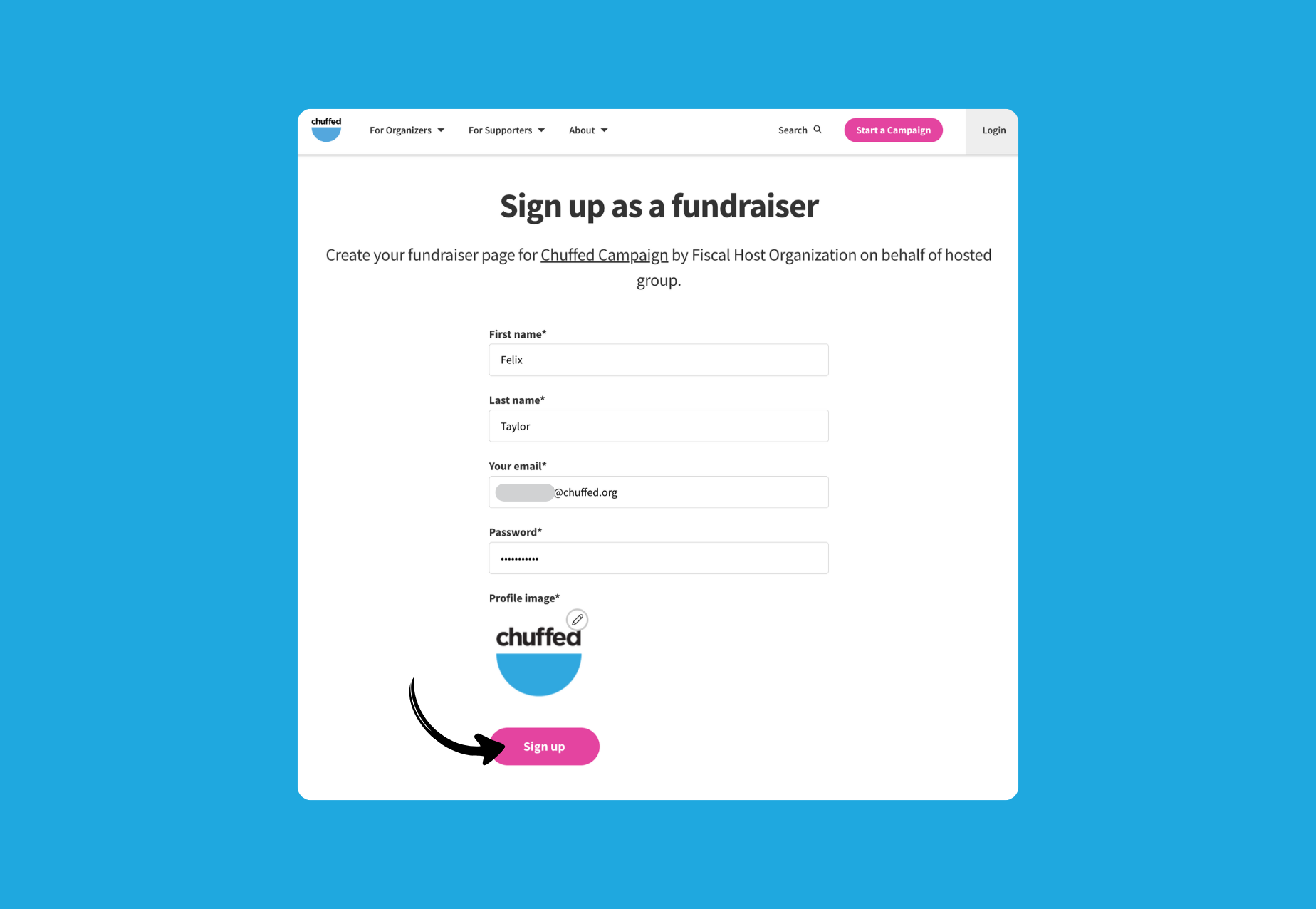
Step one: Enter your personal details
Start with the basics, you’ll be prompted to enter your name, email, password and add a profile image to create your account.(You’ll be able to personalize your page description and other details later)
Step 2: Verify your email.
Once submitted - you’ll see a prompt to check your email to verify your account. This is an important step to make sure that it was really you that created the fundraiser.
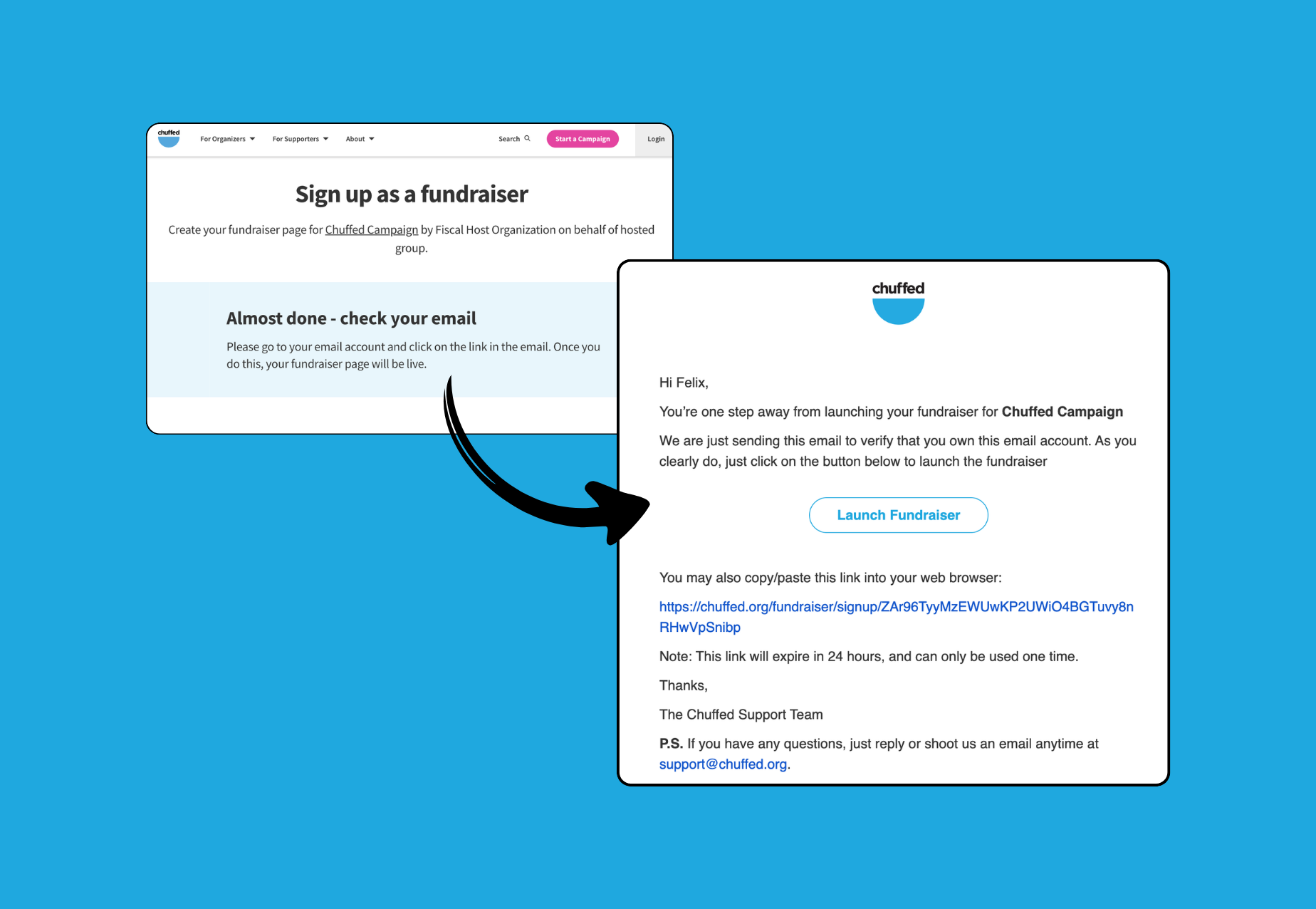
To verify your account click the link from your email (or copy/paste the link into your browser).
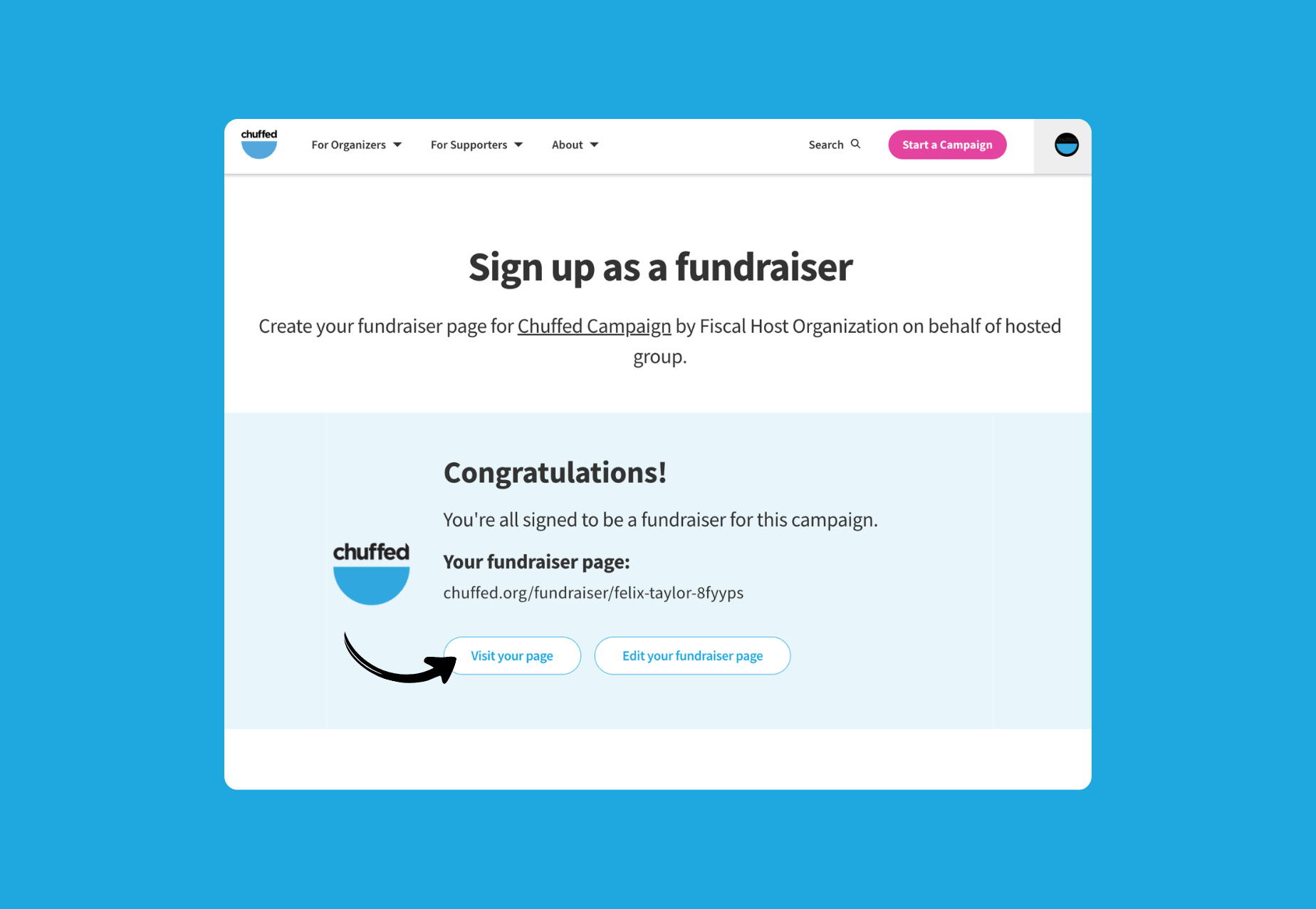
You’ll be logged in automatically and taken to your dashboard. You should now see a prompt confirming your page has been where you can review your fundraiser page or continue editing.
Editing your fundraiser page once it’s created
Once you’ve created your fundraiser page, you can edit it anytime.
Follow these steps to edit your fundraiser:
Ensure you are logged into your Chuffed account
Open your campaigns dashboard (https://chuffed.org/dashboard)
Click the ‘Manage’ button to Edit your campaign
Make any changes and Save to finalise.
There are three sections of your fundraiser page for you to edit:
Details
Image and Video
Fundraiser description
Details
Here’s where you can edit the general details of your fundraiser page.
💡Tip: Choose a descriptive fundraiser name and customise the fundraiser URL so that your page is easy to read and share.
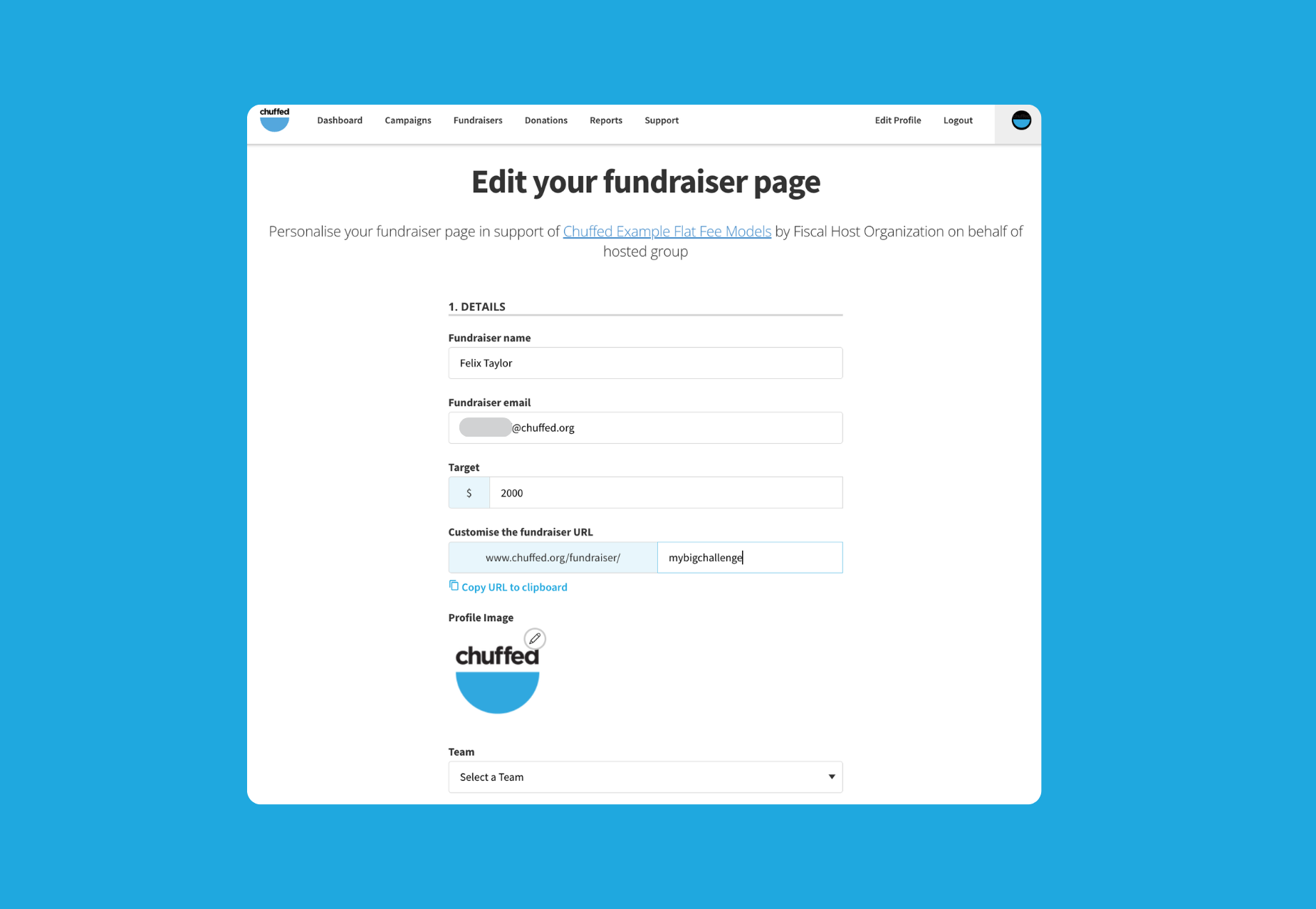
Image and Video
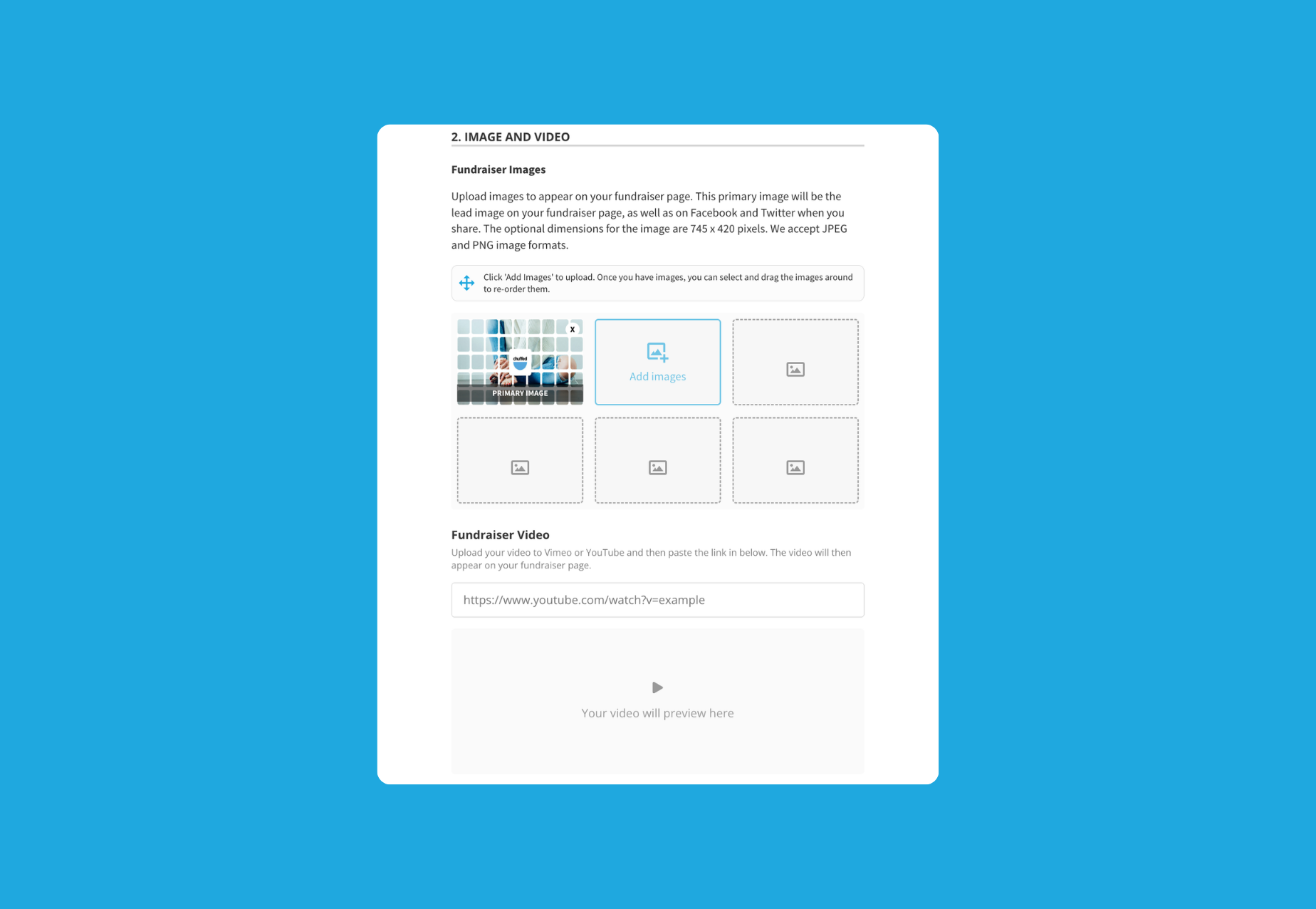
You can upload images or link to your video to demonstrate your fundraising efforts visually to your supporters.
💡Tip: Add images that show your personal connection to the campaign, why you’re fundraising and how you’re showing support.
Fundraiser description
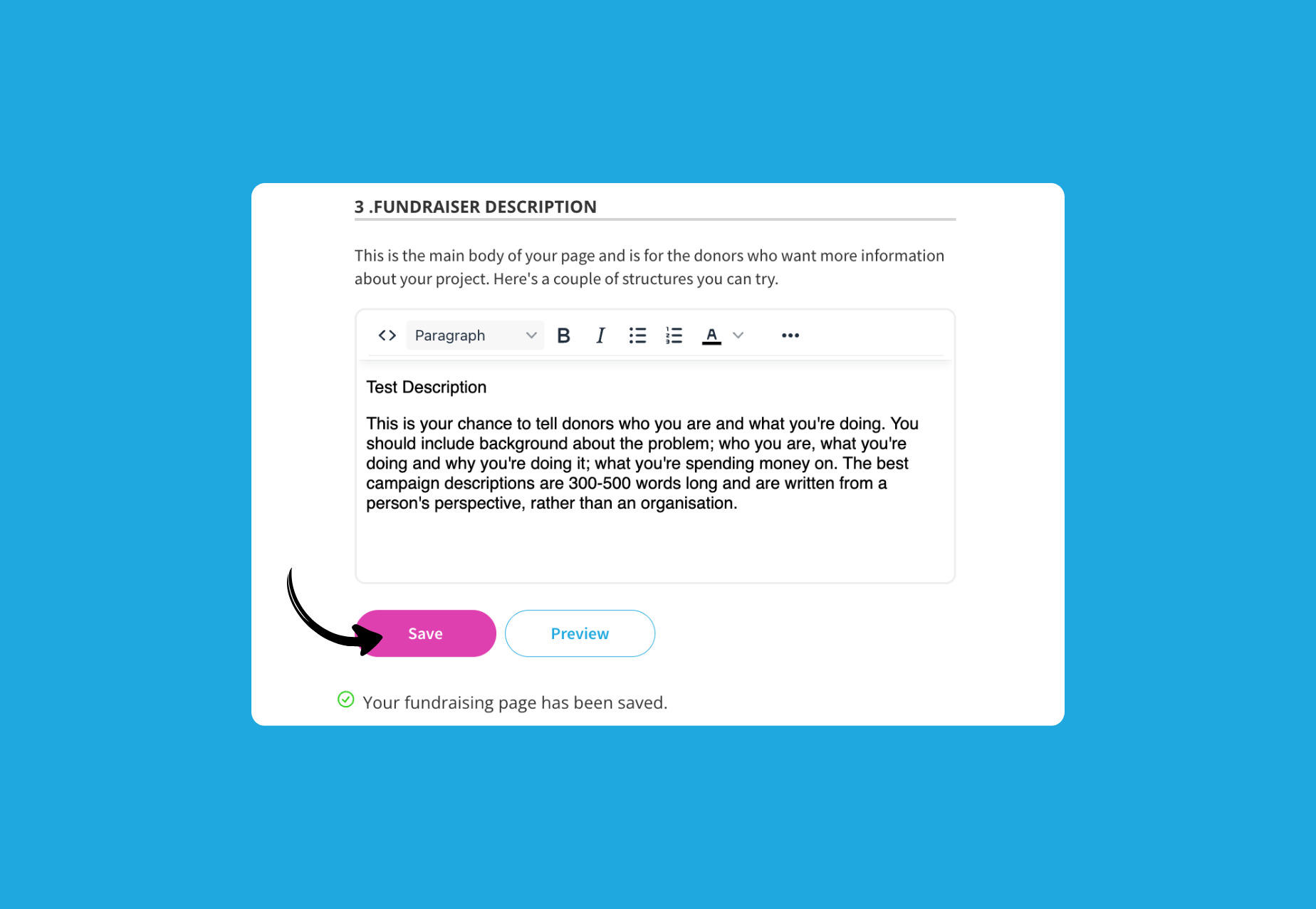
Here’s where you can customise the description on your page.
💡Tip: Use headings and formatting to organise your description so that supporters can easily read your page and connect with your words.
Frequently Asked Questions
Why can’t I see the option to create a fundraiser on a campaign?
If you aren’t able to locate the ‘Sign up as a fundraiser’ button, it could be that the campaign you’re supporting has not enabled fundraisers. You can reach out to the Chuffed’s support team for help contacting the campaign organisers to enquire further.
Do I need to join a team?
No, teams are entirely optional and may not always be relevant to the campaign. If you are not fundraising as part of a group, you won’t need to join a team.
How can I close my fundraiser page?
Great question! Fundraiser pages are designed to stay open for as long as the main campaign is live and receiving donations. This means that there is no setting to close your fundraiser page or prevent it from receiving donations.
Understandably there may be special circumstances that require you to remove your fundraiser page. You can contact our Support Team at support@chuffed.org for more help.