
How to Set-Up a Stripe account
Why do I need a Stripe account?
Creating a Stripe account allows you to offer donors the option to contribute via credit or debit card. Ensuring you have correctly filled out Stripe’s registration is important, so we have created this step-by-step guide to support you through the process.
How to set-up a Stripe account
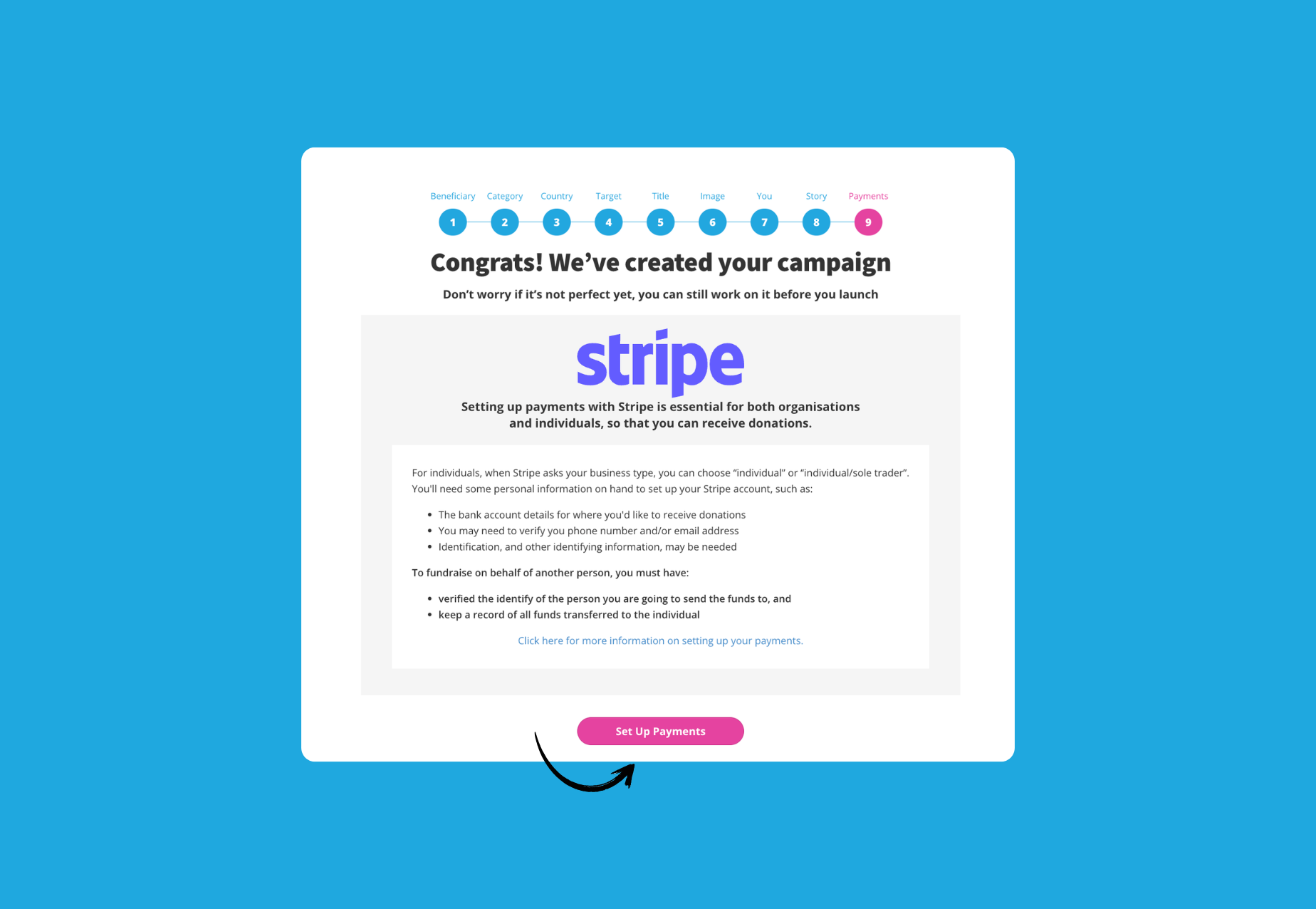
You are at the final step of creating your Chuffed campaign. Select “Set Up Payments” to get started.
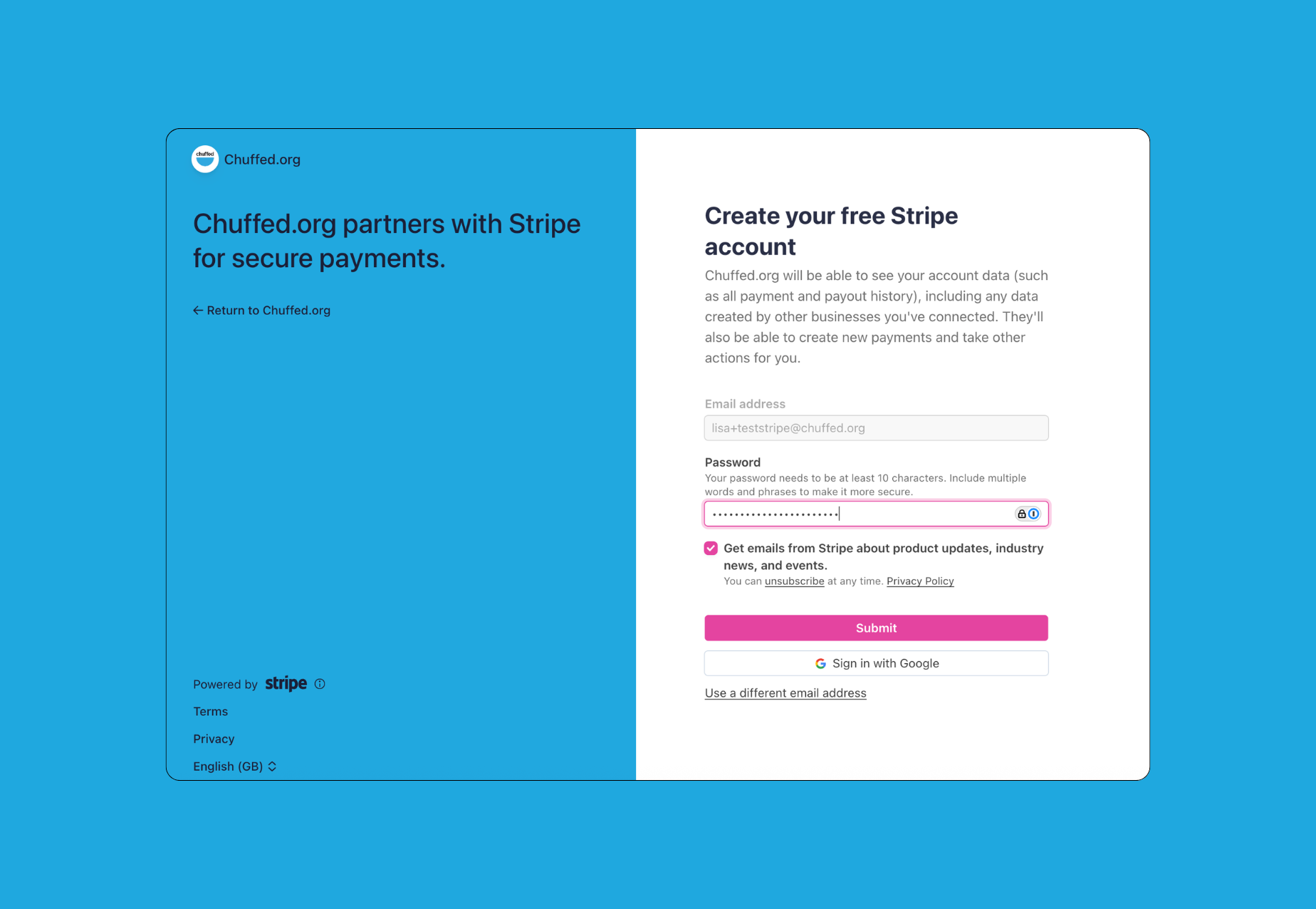
If this is your first time using Stripe, you will be prompted to enter an email address and password. If you already have a Stripe account, please log-in with your user email.
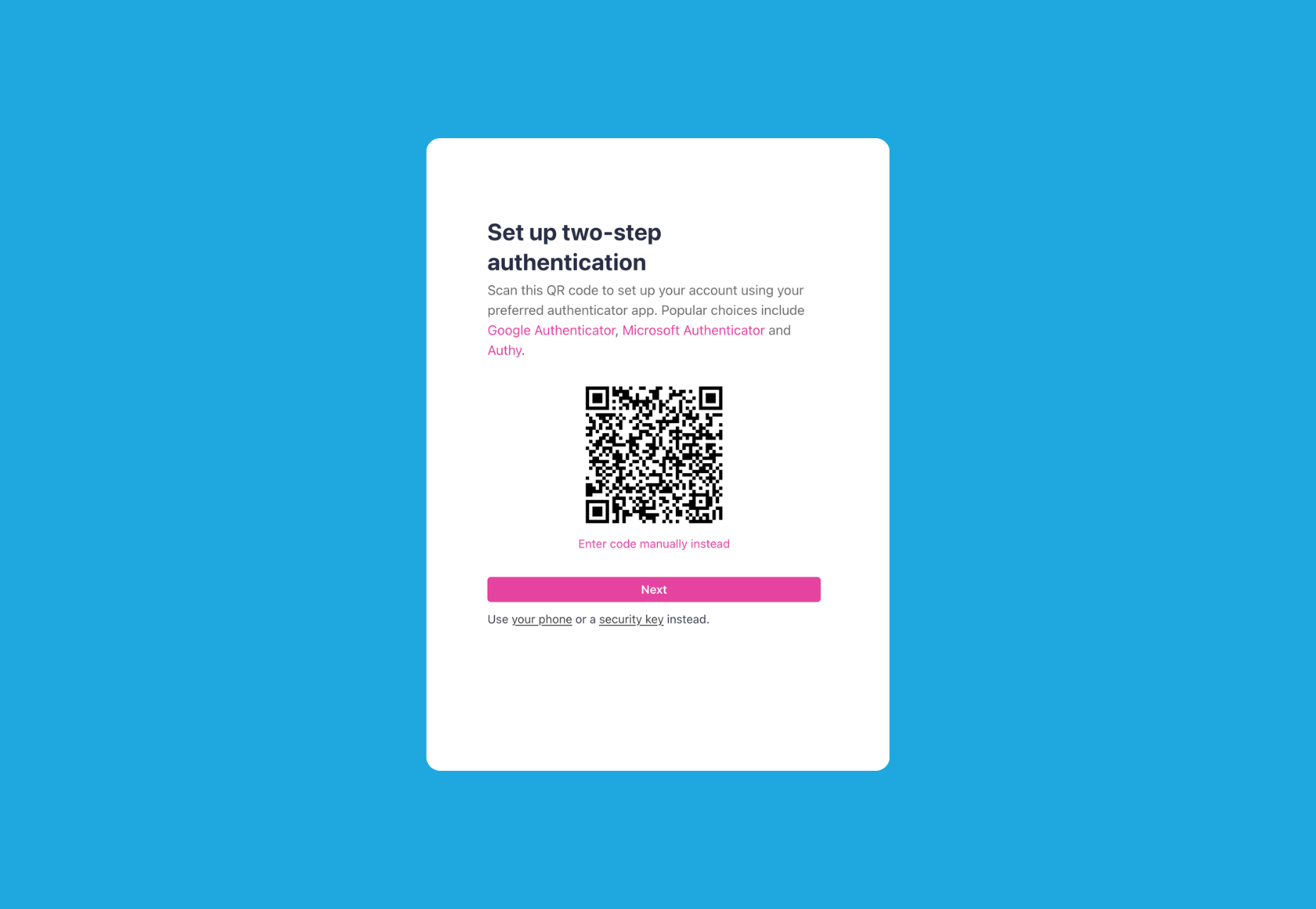
Next, you will be asked to authenticate your account information by downloading the Google Authentication app. Once you complete the verification, you will be provided with an emergency backup code; be sure to store it somewhere safe.
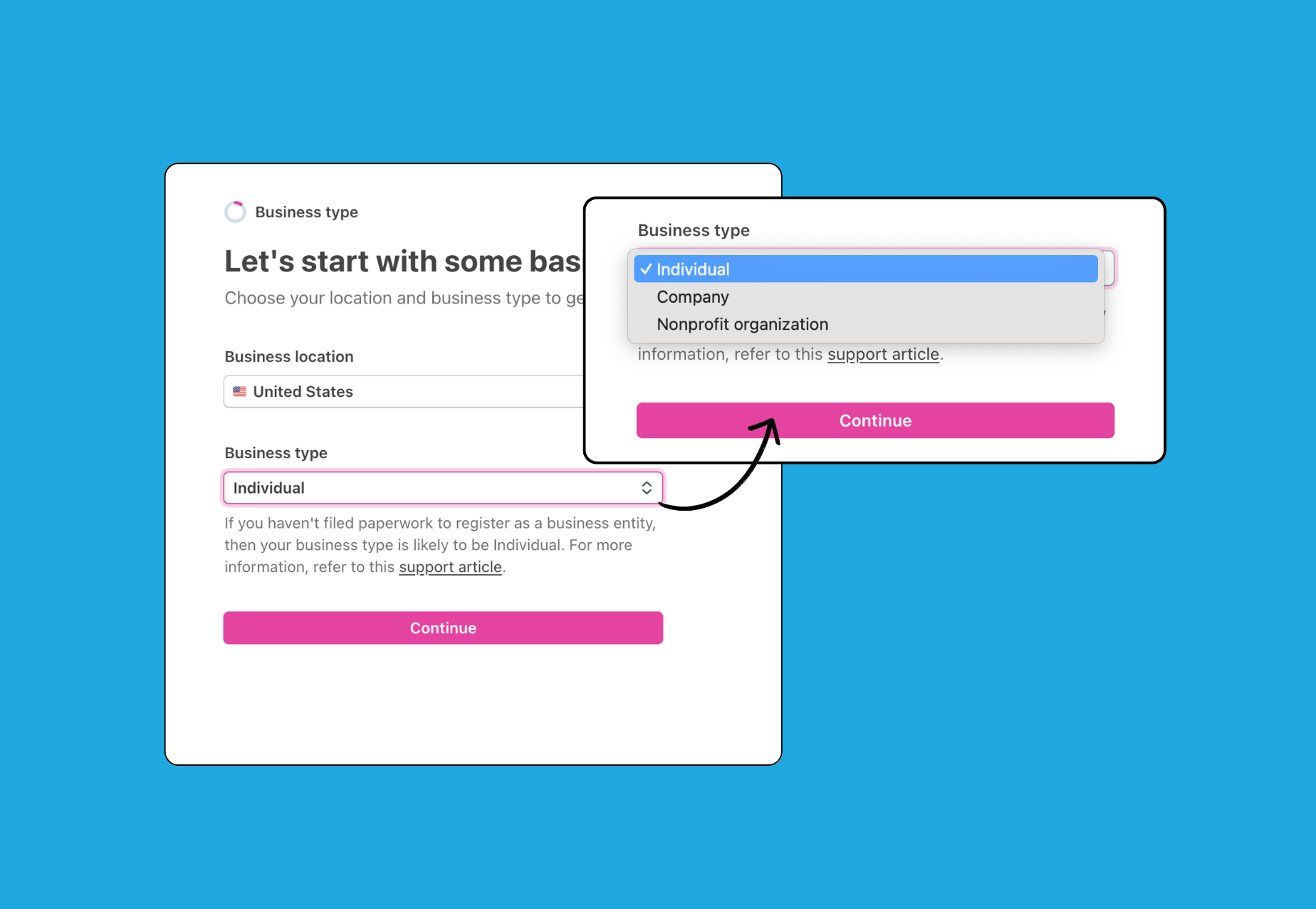
Enter your Location & Business Type : Provide accurate information to avoid future Stripe account restrictions.
Location: Stripe requires your ID and bank account to be from a supported country. Your ID address, bank country, and chosen campaign country on Chuffed must all match.
Business Type: Select the option that best fits your circumstances. If you're not fundraising as a registered organisation or charity, you can register as an Individual/Sole Trader.
Depending on your selection, you'll need to provide:
Individual — Specify whether you have an SSN.
Company — Company name, address, phone, tax ID, registration number, directors, owners, executives, and terms of service.
Not-for-Profit (NFP) — Organisation type (incorporated, unincorporated, cooperative, or other), plus name, address, phone, tax ID, executives, and representatives.
If you're unsure which business type applies to you, contact Stripe directly at stripe.com/contact.
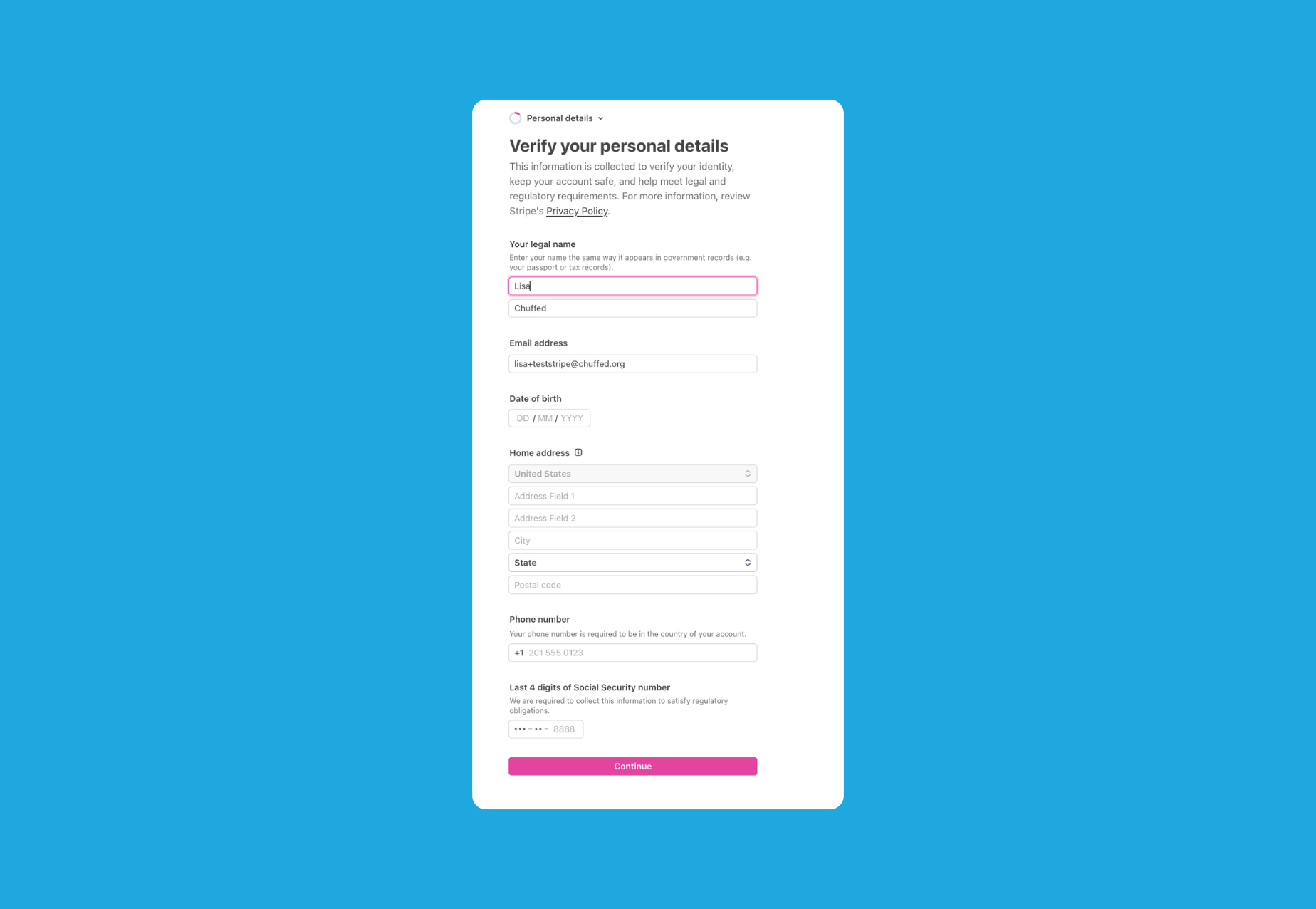
5. Enter your personal details : This should be the name and email of the person managing the campaign and owner of the bank account - not the beneficiary. This is because you are the owner of the Stripe account and may need to verify your personal details.
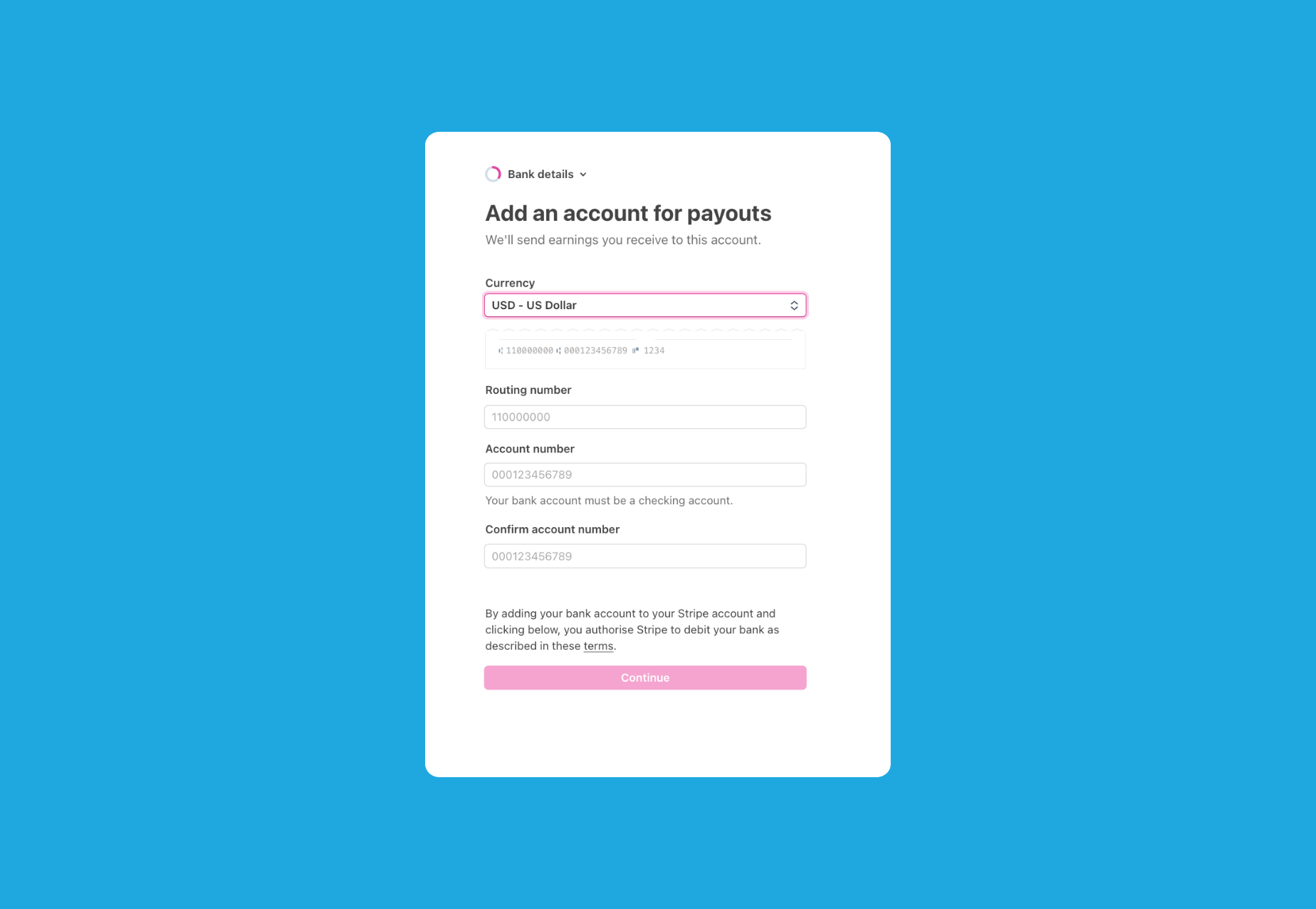
6. Add your bank details for account payouts : Ensure your bank account address matches your personal ID address.
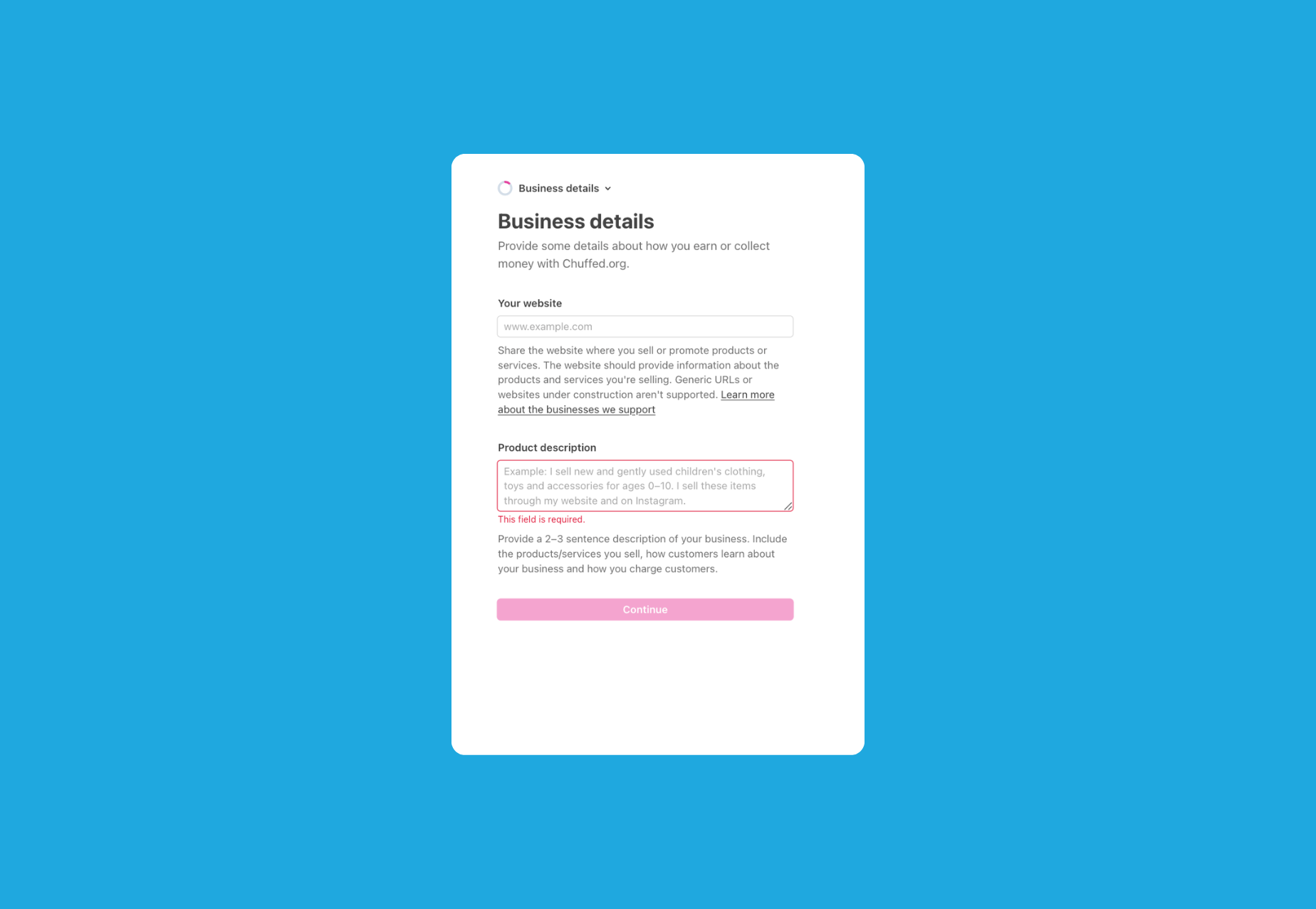
Enter a Website URL & Product Description: The URL needs to be any active website or social media link — it doesn't need to be your campaign URL at this stage. You can update it to your Chuffed campaign link later.
The Product Description can be a brief description of your fundraising page.
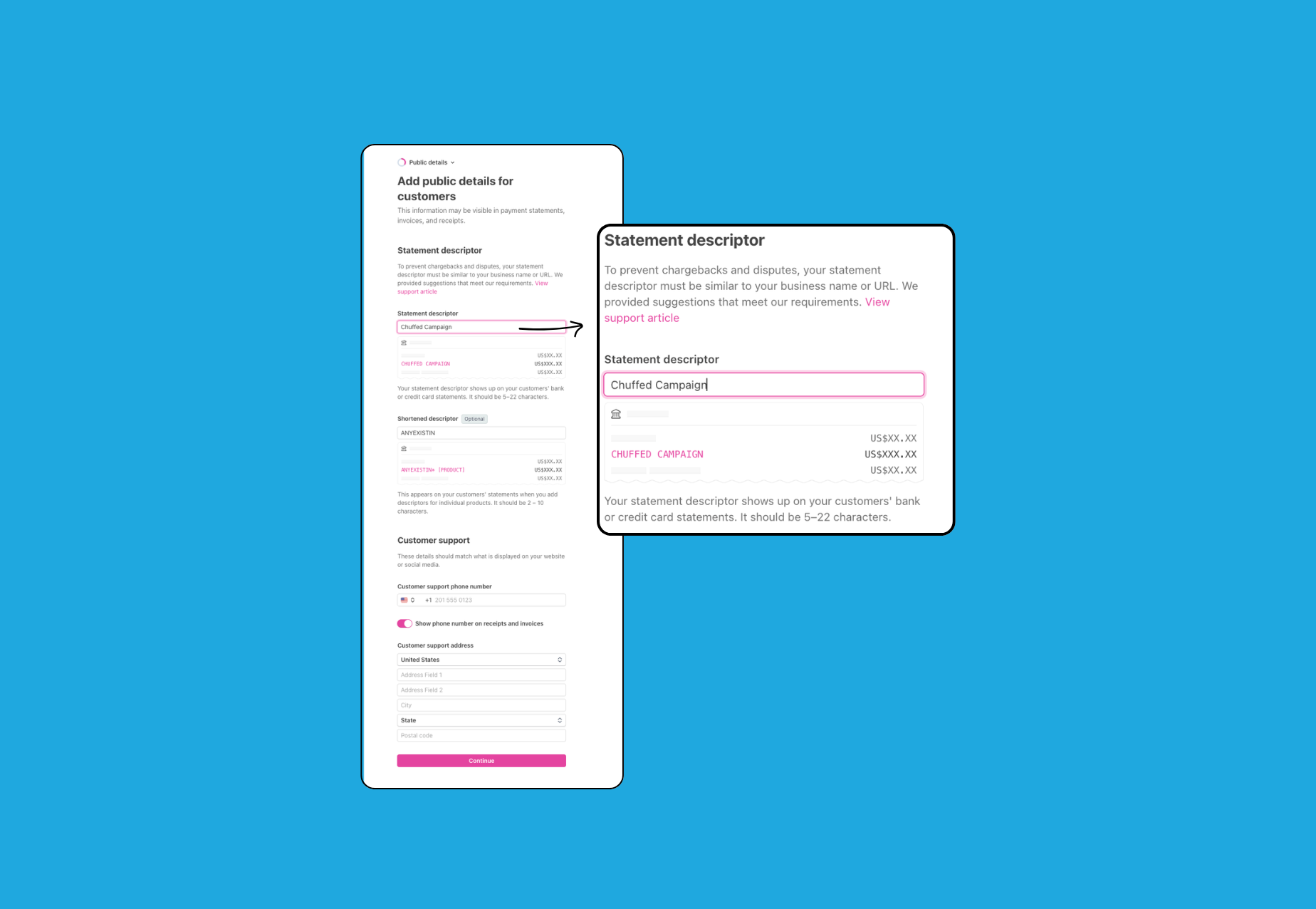
Add public details for customers: These are the details that the donors will see ie. Statement descriptor. We advise to include ‘Chuffed’ in the descriptor to avoid donor confusion.
8. Review your information and Submit for Stripe’s approval.
Important Note:
You may be required to provide more information to Stripe once your account is set up. We suggest regularly logging in to your account to ensure you are adhering to Stripe’s requirements. Failing to provide updates and information as your campaign builds momentum, may lead to temporary account restrictions until you submit the necessary information.
We strongly recommend reading Stripe’s support documents which go into more detail about the information you will be required to provide based on your selections: Required verification information.
Frequently Asked Questions
My account has been set-up as a Business type and not as an Individual/Sole Proprietor. What should I do?
You might find it helpful to read this Stripe support document: How do I update the business type for my payee on their tax form?
If you still need help with your account, you can contact Stripe support via email, chat, or phone here.
Alternatively, you can disconnect your Stripe account from your Chuffed campaign and then reconnect to Stripe by choosing an Individual account.
What if I need to change my Stripe account after I’ve already received donations?
If your campaign was already active, all past donations will still remain with the current connected Stripe account. Only new donations will go towards your new Individual account after it is connected.
My Stripe account says it has been Restricted. What does this mean?
This means that your payouts and payment processing has been paused while Stripe awaits further information from you.
You will have received emails from Stripe regarding additional information required to continue to use your Stripe account. As the deadline to supply the additional information has now passed, Stripe has restricted your account until you're able to supply this to them directly.
You'll need to login to your Stripe account and respond to the requests/prompts on your Stripe dashboard.
My country is not on the list of Supported countries. What can I do?
Unfortunately, we cannot support campaigns in your area due to restrictions imposed by Stripe. We're very sorry about this barrier to using our platform.
If you know somebody in one of our currently supported countries who can accept funds on your behalf, we would be happy to consider hosting your campaign on our platform. We are very sorry that we can't help you on this occasion.