
How to Create Campaign Updates
Watch the 3 minute video guide instead:
What are Campaign Updates?
Campaign updates let you share the latest news with your donors and supporters whether that's your campaign's current status or how funds have been used so far. Updates are a great way to re-engage past donors, as anyone who has opted in to campaign communications will receive a notification. They give supporters real-time insight into what you've achieved.
How to post a Campaign Update
Ensure you are logged into your Chuffed account
Open your campaigns dashboard (https://chuffed.org/dashboard)
Click the ‘Manage’ button to Edit your campaign
Select ‘Post Update’ under Campaign Updates
Type in the Title and Edit the contents of your post.
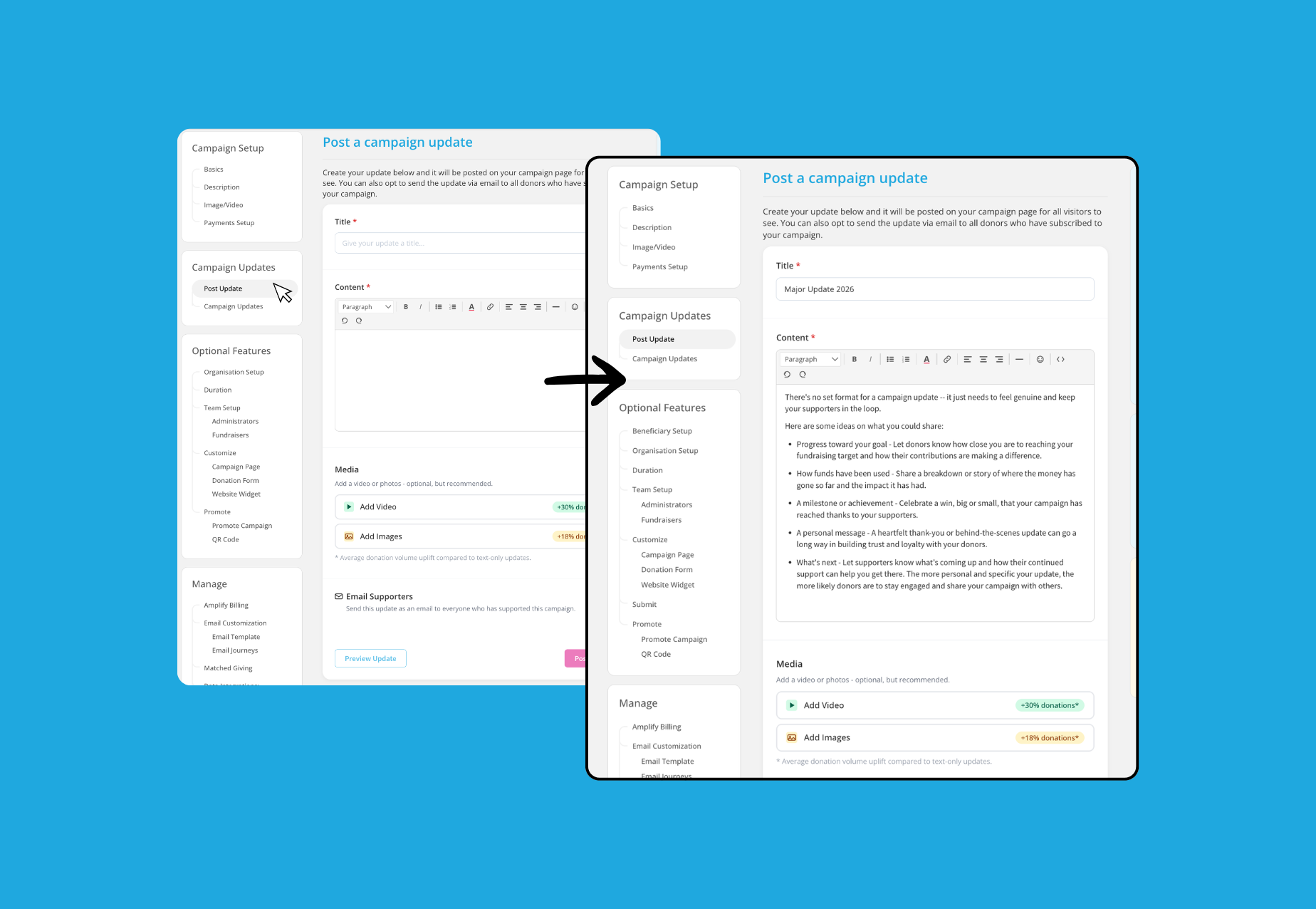
Upload any Media you’d like to include in your post. Select the media type to expand the relevant uploader.
💡Adding video or images to your post can increase donations to 30%
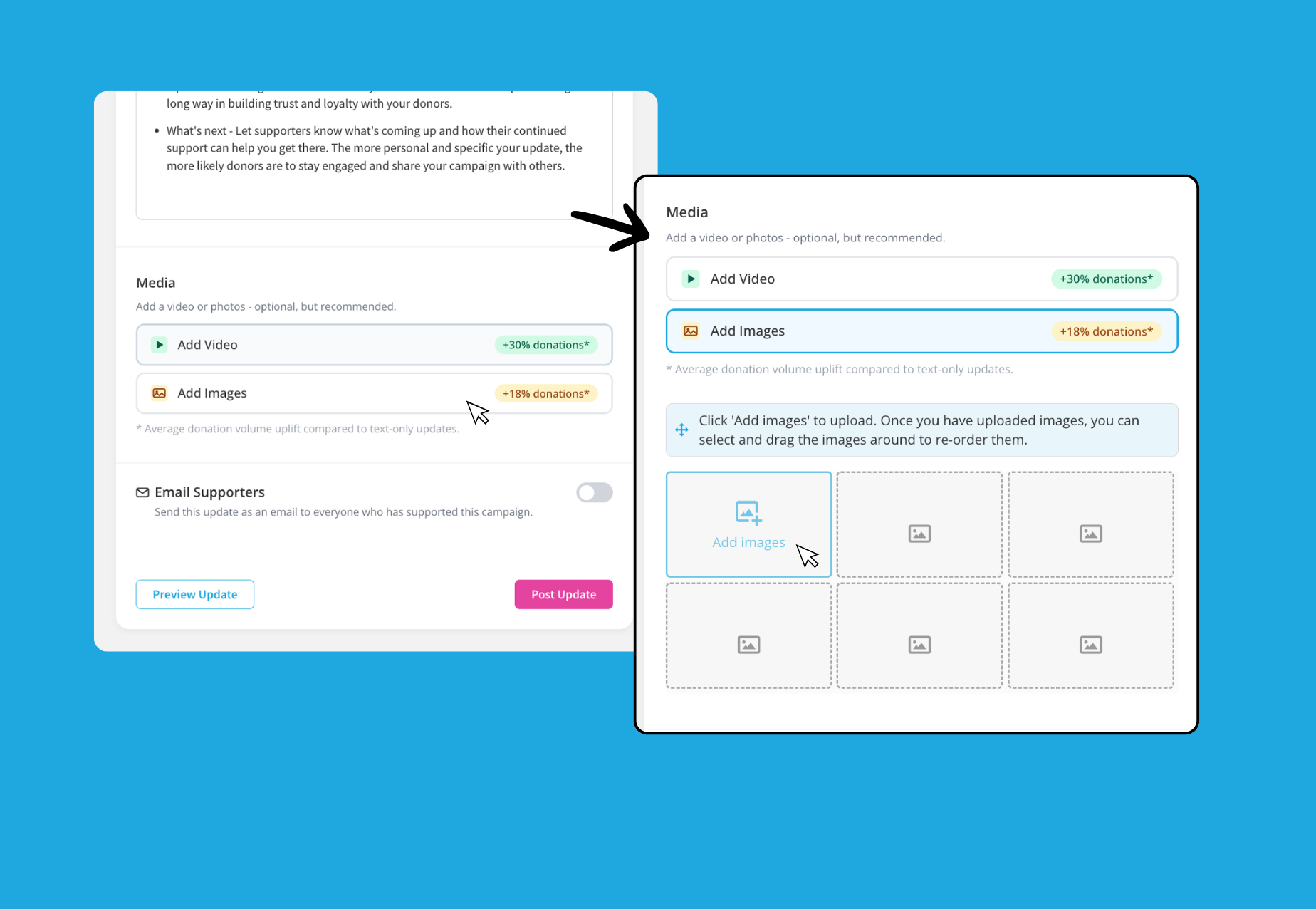
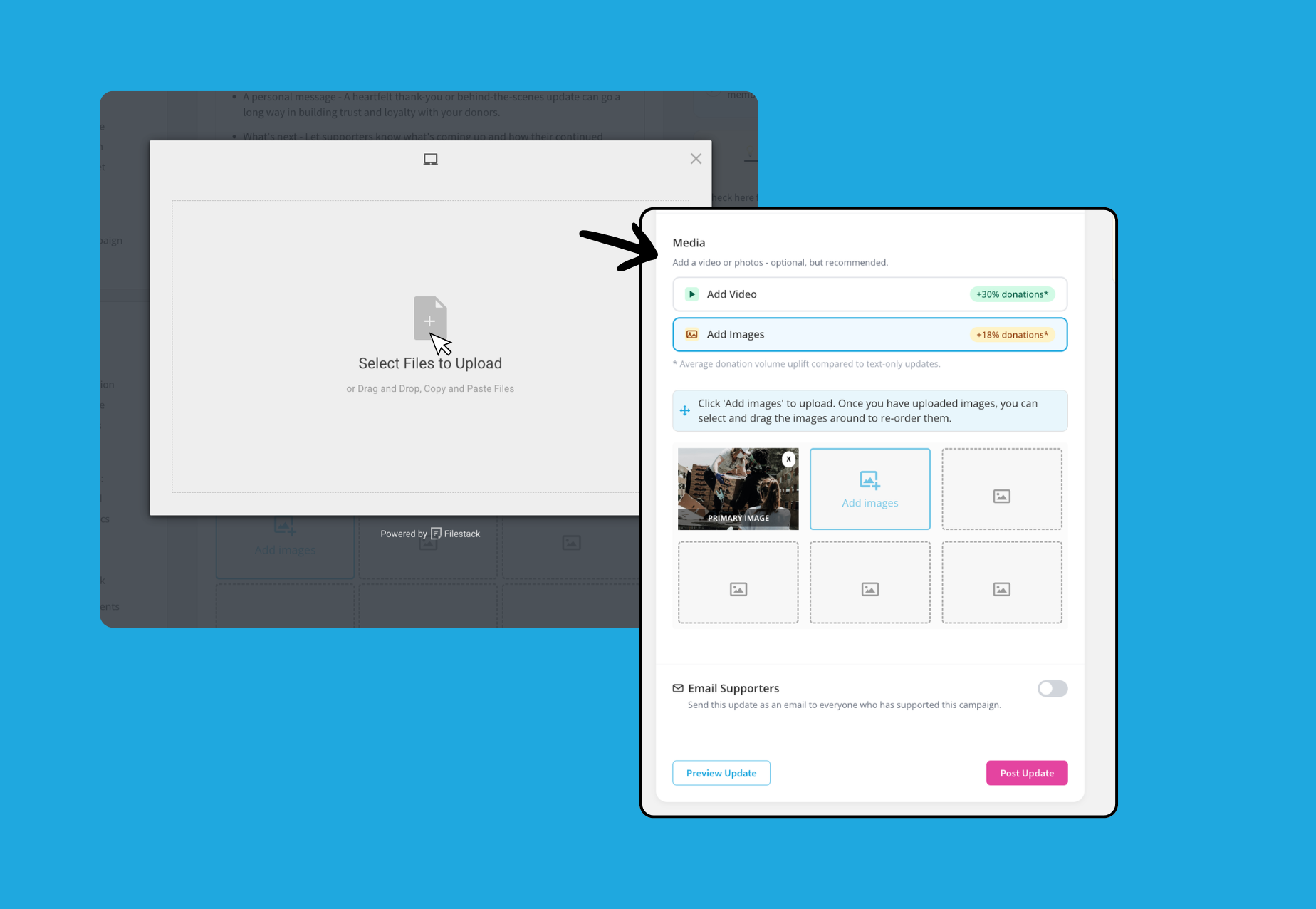
Select any files to upload and follow the prompts to add them to your post. Once uploaded, you’ll see them automatically under your Media section.
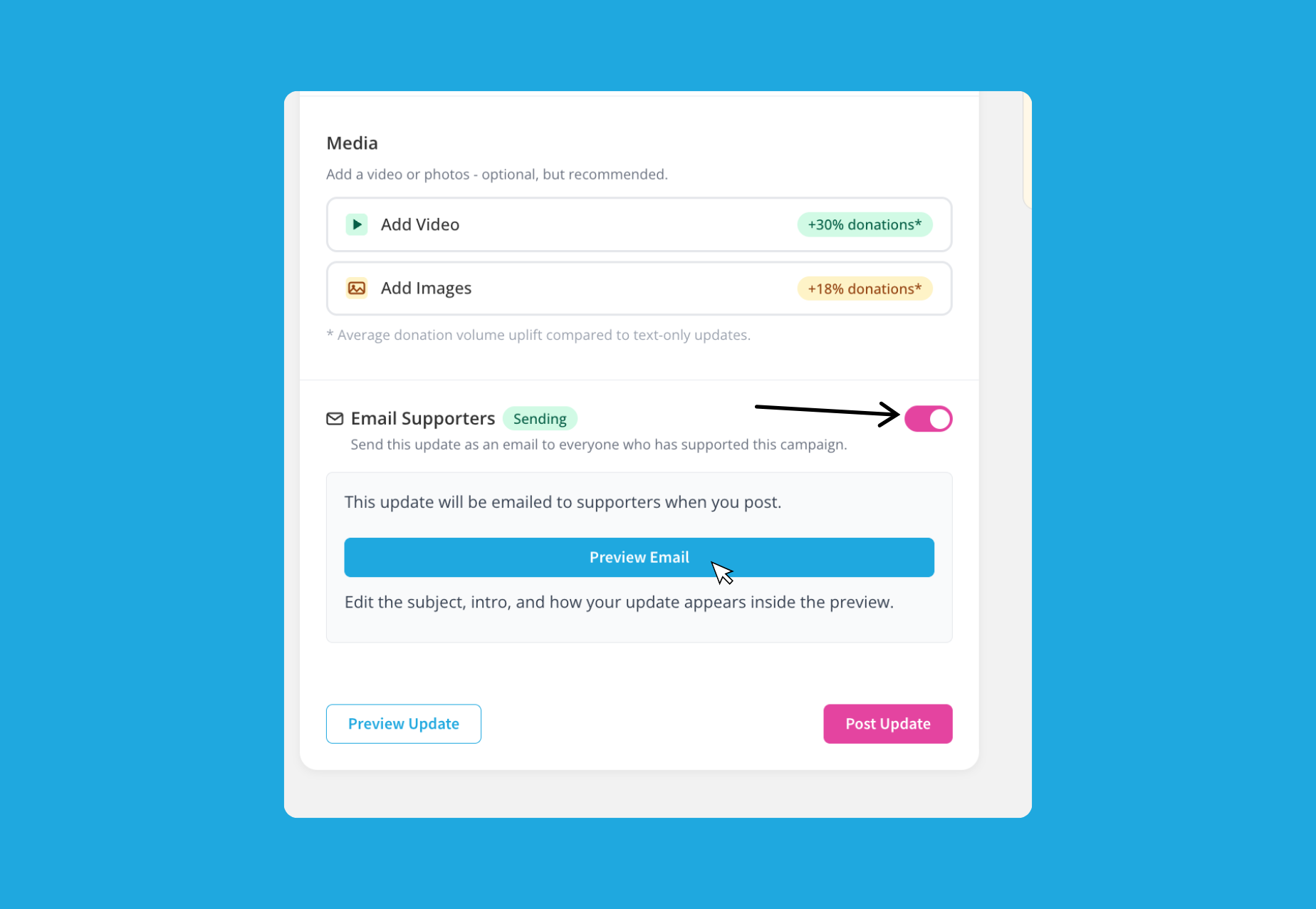
To send your update as an email, toggle the Email Supporters setting ON and click the ‘Preview Email’ button.
In the Email editor modal, customize the Subject line and email Intro text fields. You can preview all your live changes panel to the right.
When you’re ready, click the ‘Send test to me’ button in the bottom left corner to receive a test email with your updates.
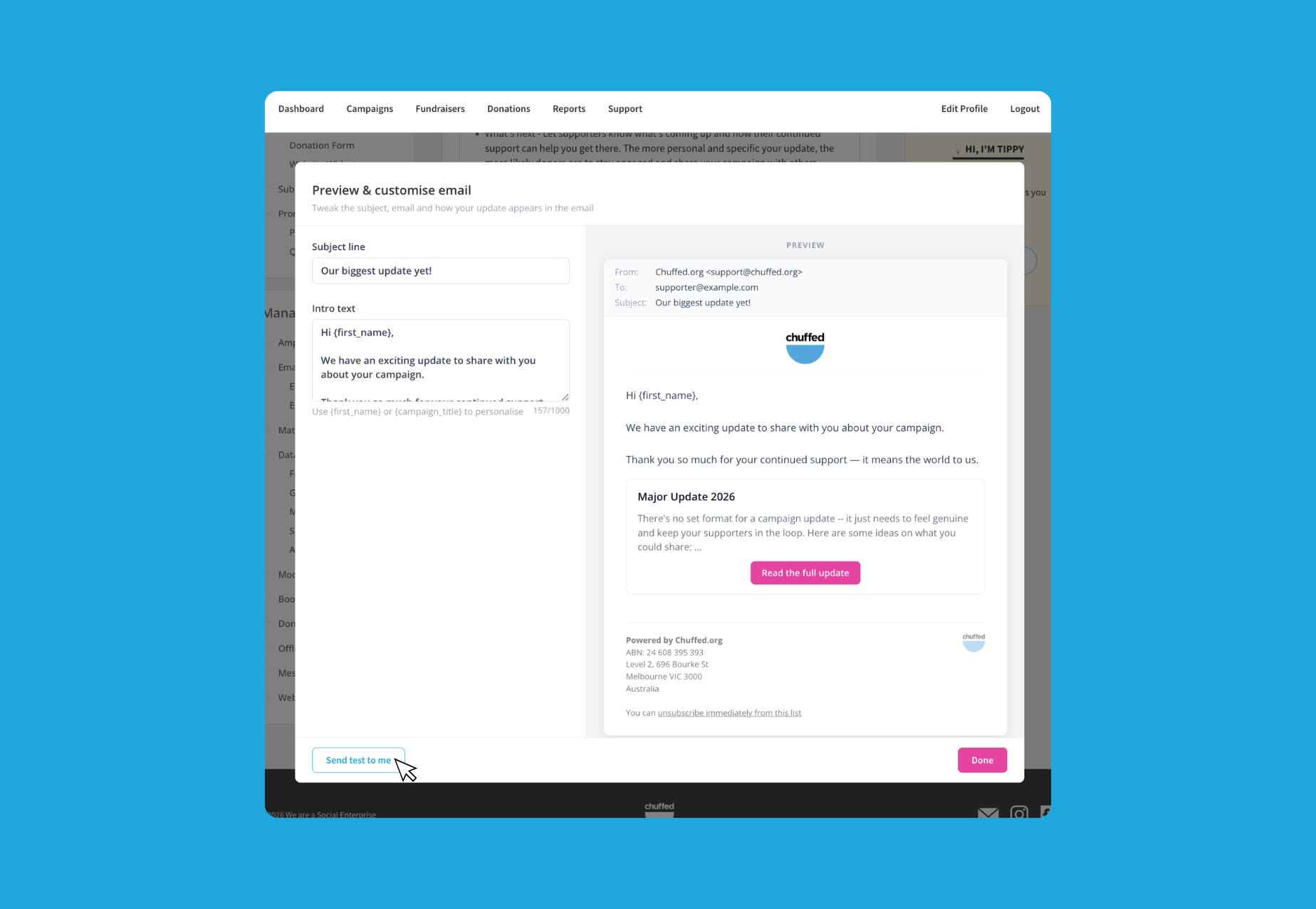
Once you’re finished editing, click the ‘Done’ button to close the Email editor modal.
Before posting, you can click the ‘Preview Update’ button to see what the post will look like in a modal.
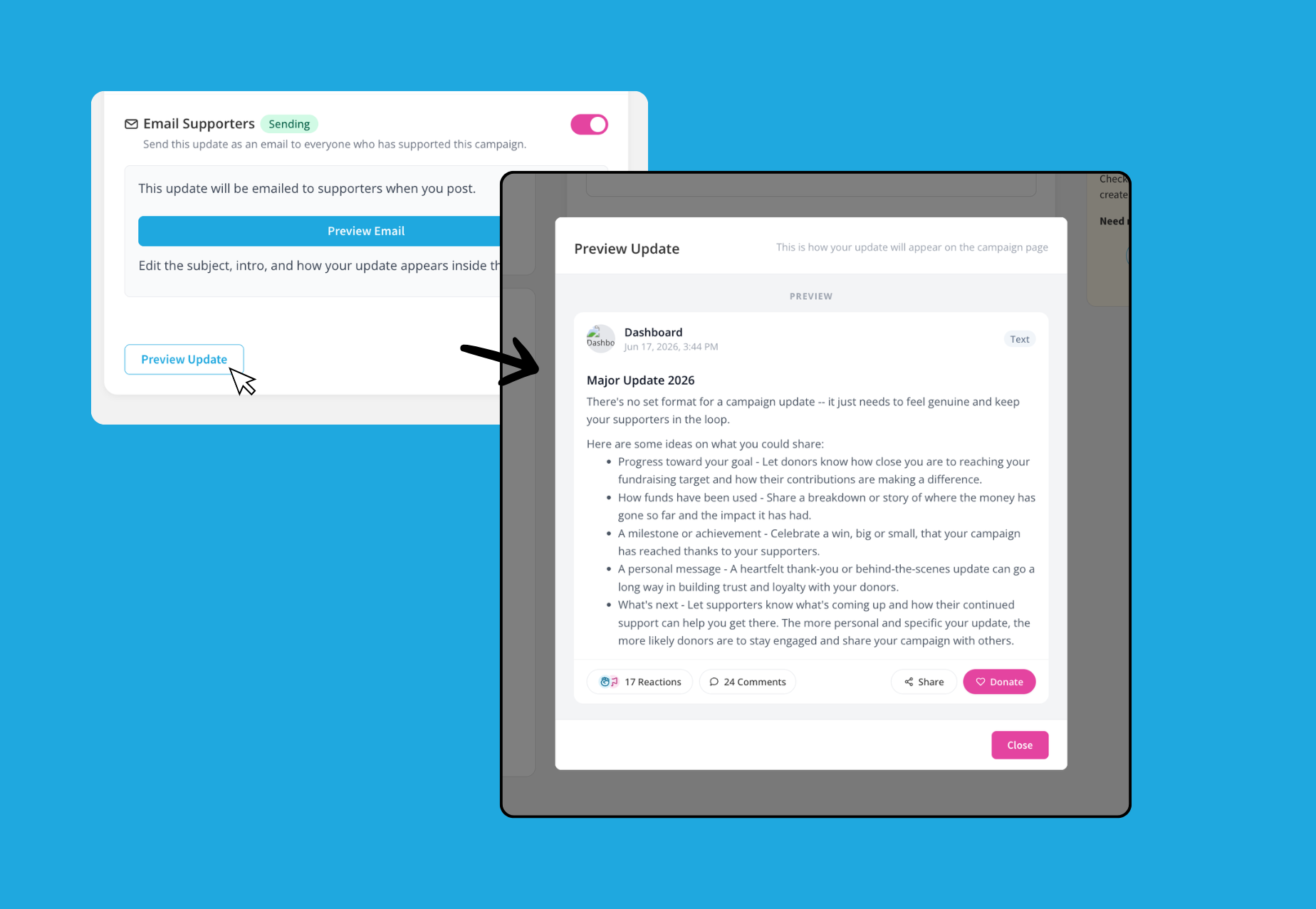
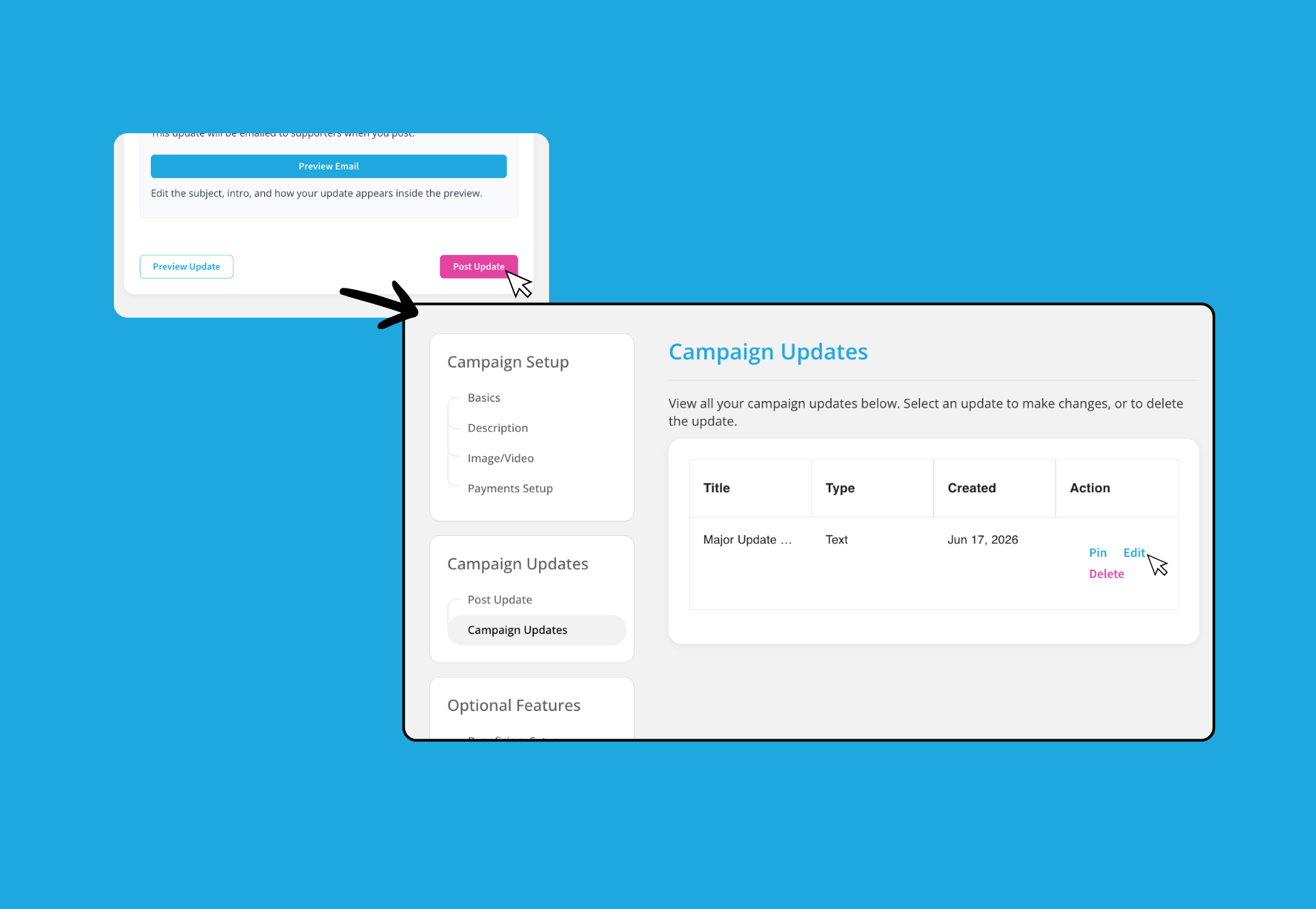
When you’re happy with the preview, click on ‘Post Update’. Refresh your campaign page to view the new Campaign Update post. All published updates can be found under ‘Campaign Updates’.
How to edit an existing Campaign Update
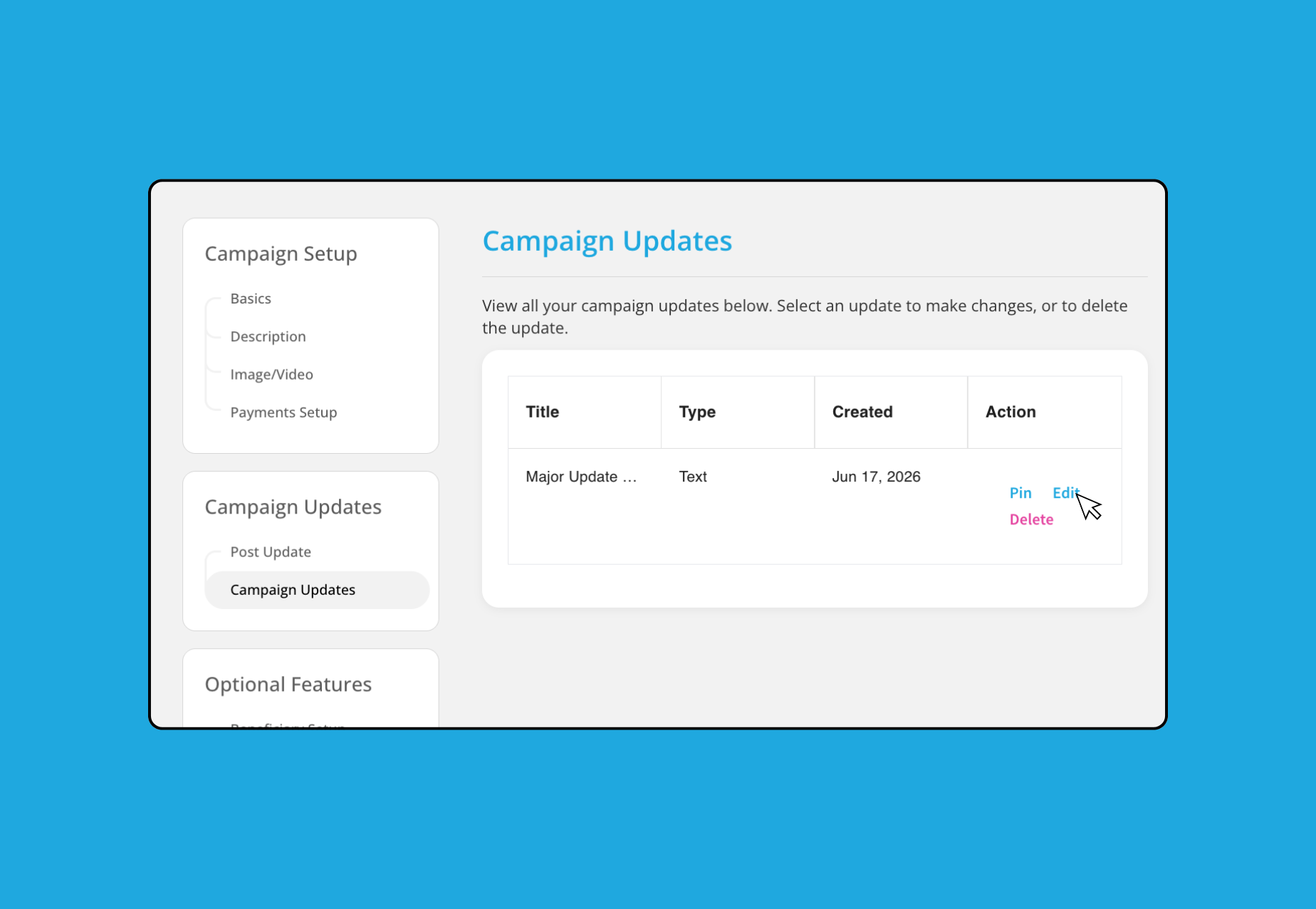
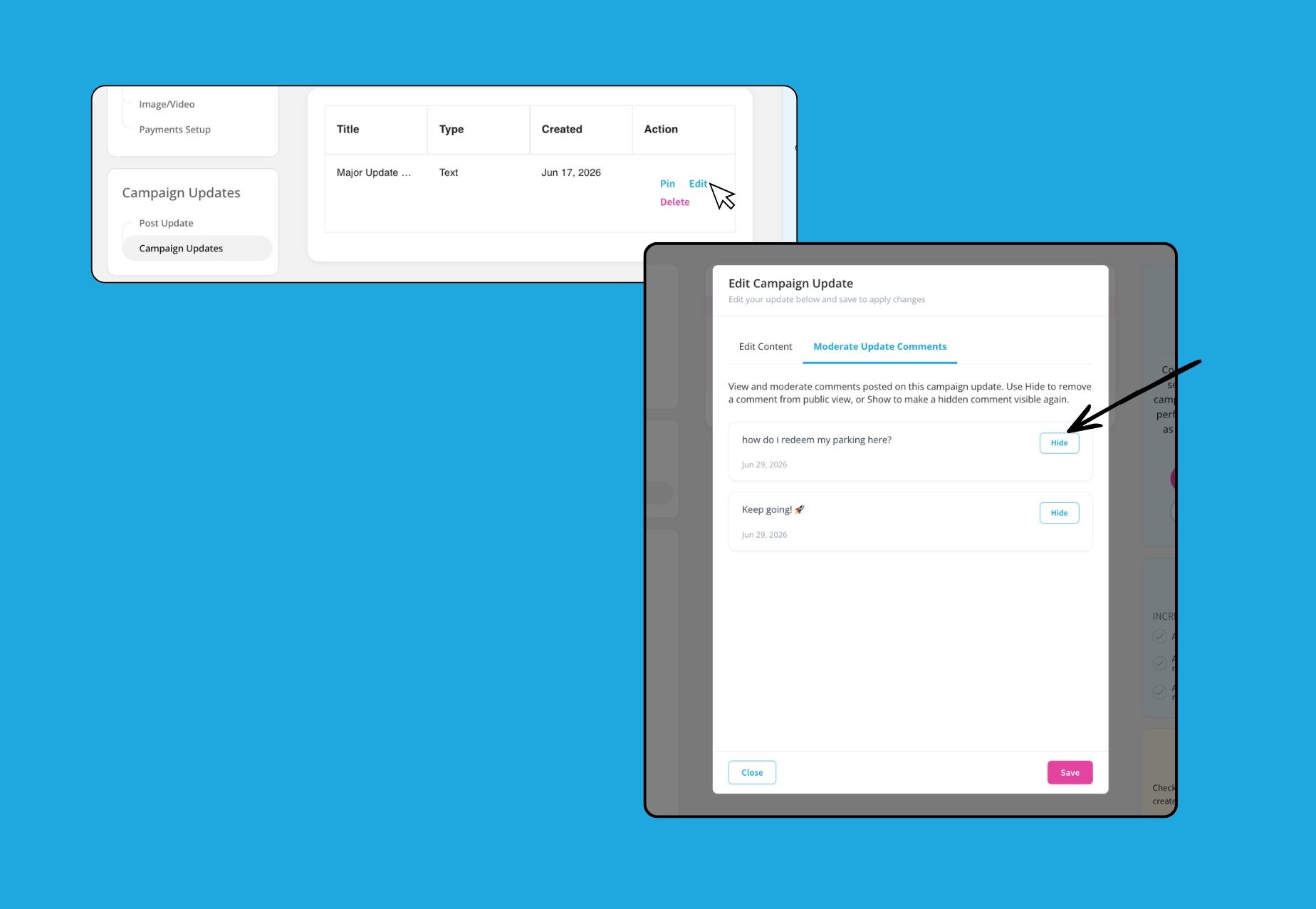
To change your existing Campaign Update, you can head to Campaign Updates in the left menu of your editor. Look for the post you’d like to change and click the ‘Edit’ action to open the post editor.
💡 Note: Saving an edited post does not re-send the post via email. If you’d prefer to send an update via email, you’ll need to create a new post instead.
Moderate Campaign Update comments
When editing an existing post, you can also moderate any comments posted on the campaign update. While the post editor is expanded, click on the ‘Moderate Update Comments’ tab to view and manage any comments.
How to delete an existing Campaign Update
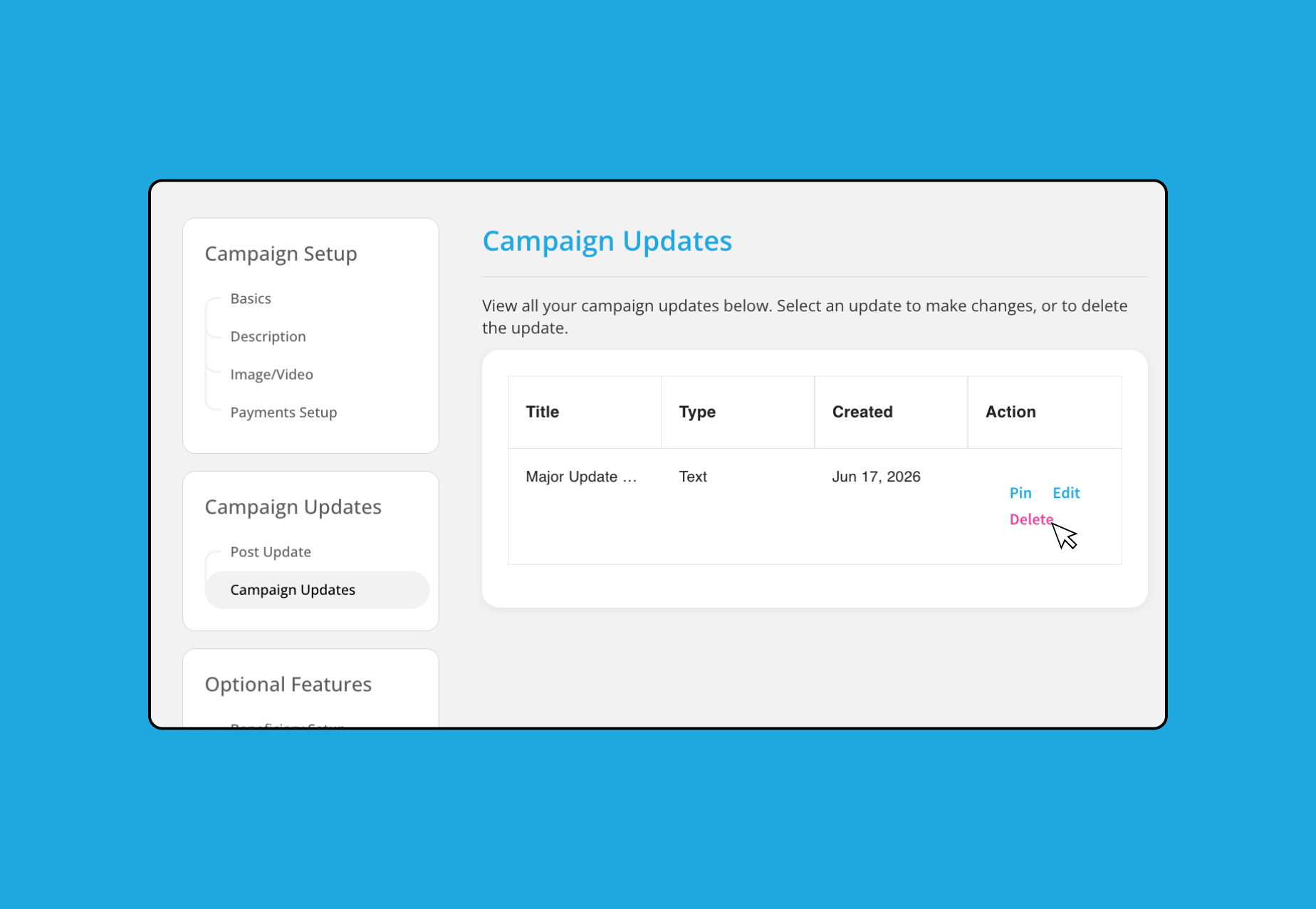
Head to Campaign Updates in the left menu of your editor. Look for the post you’d like to delete and click the ‘Delete’ action.
💡 Note: Deleting a post is permanent, once deleted it will be removed from your campaign altogether.
How to pin a Campaign Update
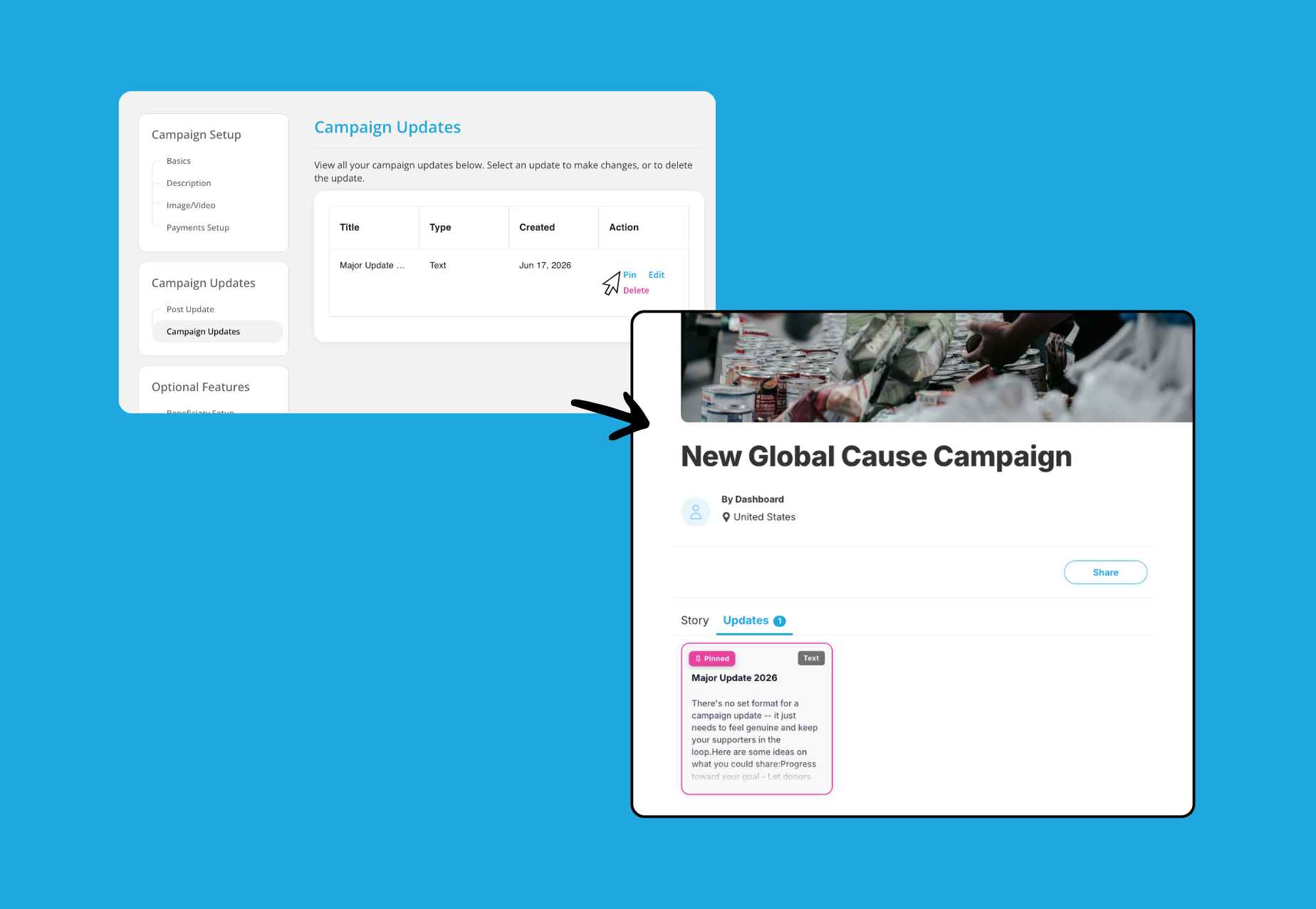
Pinning a campaign update allows you to feature the post at the top of your post feed. This allows supporters to easily locate and engage with your most important posts.
To pin the update, head to the Campaign Updates section in the editor and click the ‘Pin’ action to highlight the post.
Frequently Asked Questions
Why are my images not uploading?
Ensure your images are in any of the following formats: JPEG, PNG, WEBP, BMP and GIF picture formats. Large files can sometimes cause upload issues. Try compressing your image and uploading again.
The optimal dimensions for the image are 745 x 420 pixels - avoid using images that are smaller than this as they will stretch.
Make sure you have a stable internet connection when uploading — a dropped connection can interrupt the process.
If the issue persists, try using a different browser or clearing your browser cache before attempting the upload again.
Who will receive my Campaign Update via email?
Your Campaign update email will be sent to existing donors to this campaign who have not opted out/unsubscribed from emails.
Why did some campaign supporters not get notified of the update?
It is most likely that they opted out of receiving communications when they made their donation. You can find out their preference by Accessing your Donor Data for the campaign.