
Creating Fundraiser & Team Pages
What is a fundraiser?
A fundraiser is a dedicated page where supporters can collect donations on behalf of a campaign.
Once enabled, you can empower supporters to share their fundraiser page to start raising funds — any donations received will be reflected on their personal fundraiser and automatically contribute to the campaign's overall fundraising total.
What is a team page?
A team page is an additional separate page that supporters can create to represent a group of people they are fundraising with. Supporters must first set up their individual fundraiser page - then they can join or create a team to fundraise with.
Check out What’s the difference between a team and individual fundraiser page? for more detail.
How to enable fundraisers in your campaign
Ensure you are logged into your Chuffed account
Open your campaigns dashboard (https://chuffed.org/dashboard)
Click the ‘Manage’ button to Edit your campaign
Select Fundraisers under Optional Features →Team Setup
Scroll down to the FUNDRAISER OPTIONS list of settings
You can toggle ON any settings that you’d like to enable for your campaign.
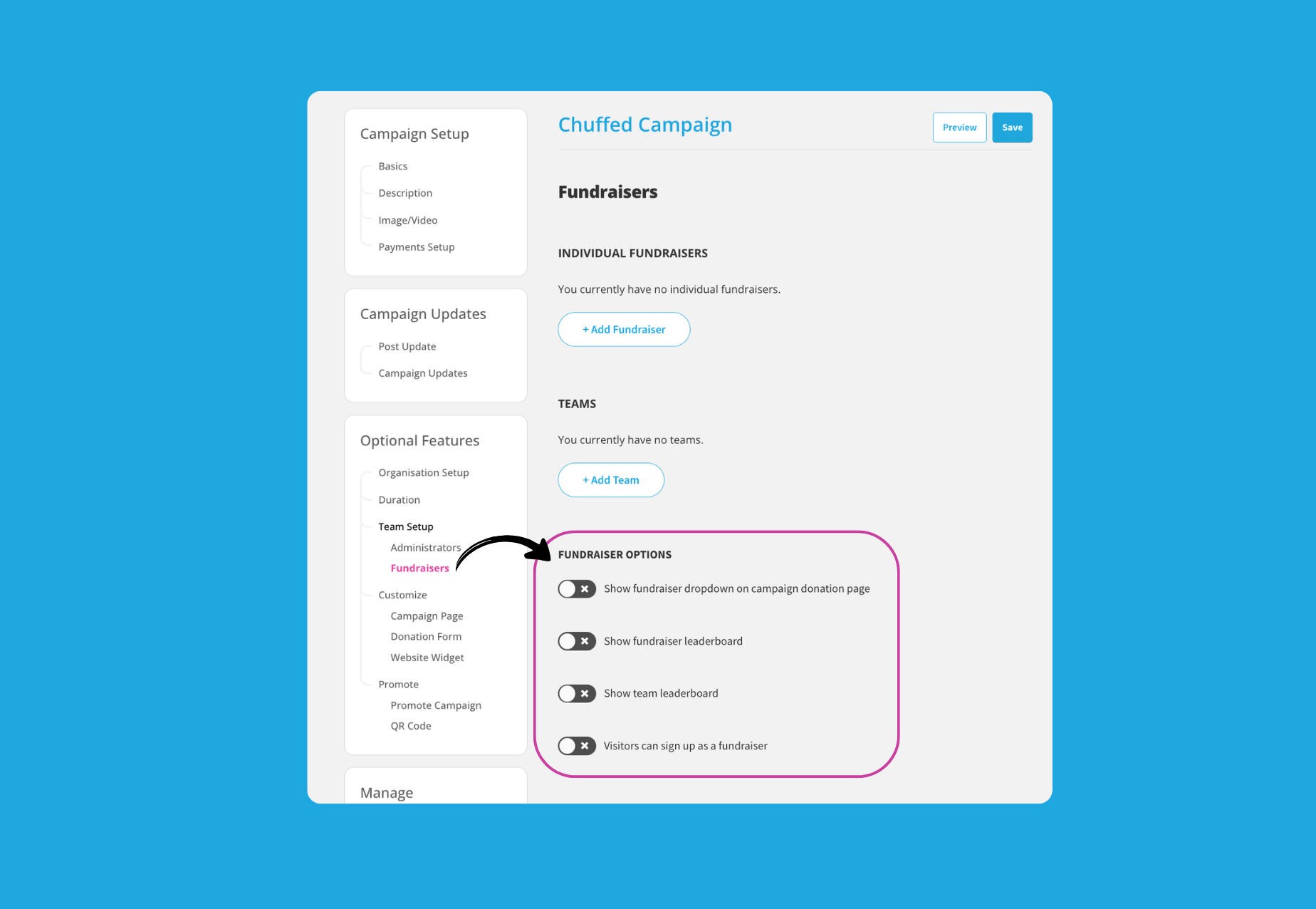
Toggle ON any settings that you would like to enable
(You should see these update to blue with check marks when ON)
Click the ‘Save & Continue’ button to finalise
Refresh your live campaign page to see the changes updated
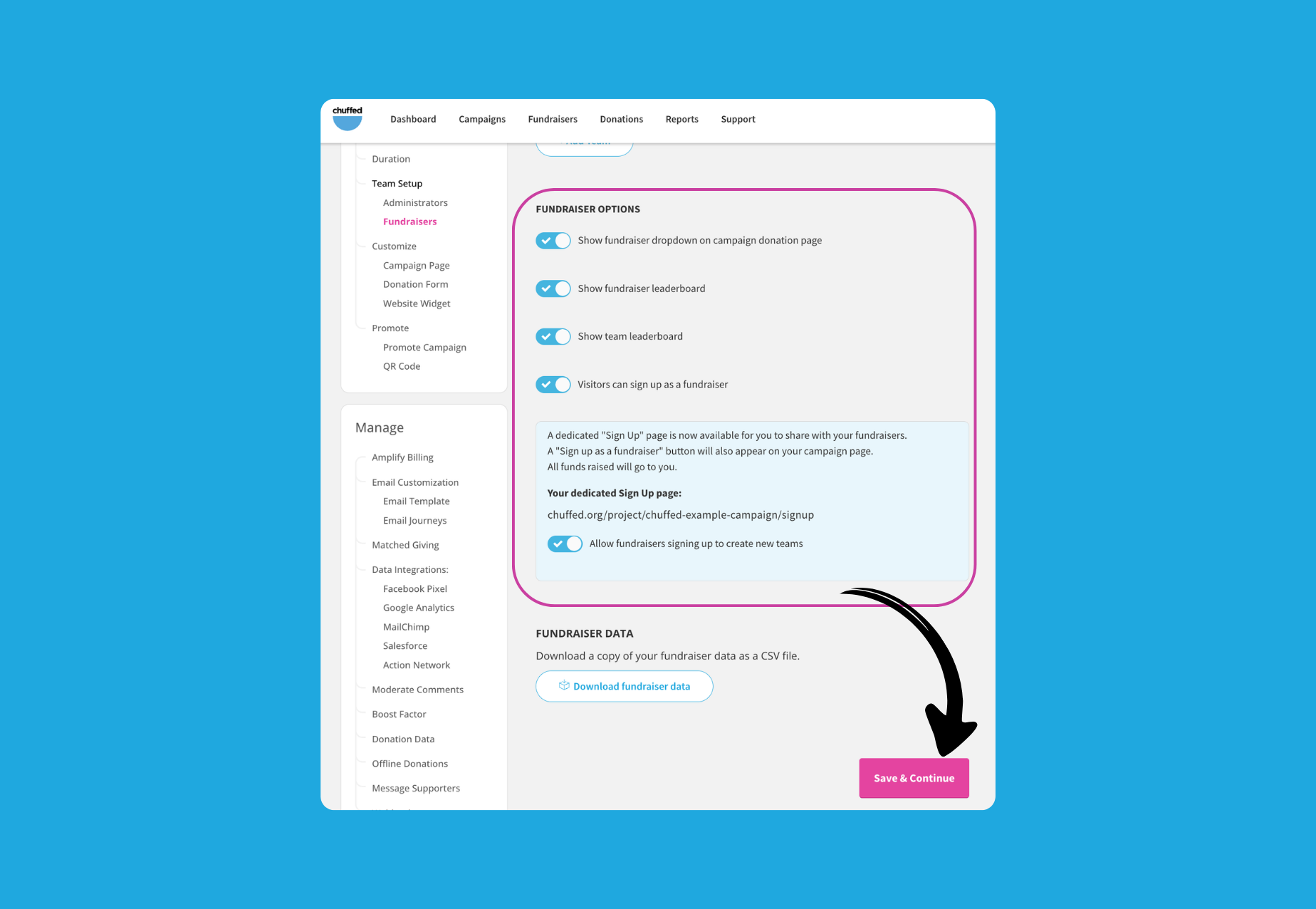
What each Fundraiser Option does
The table below confirms what each setting does when toggled ON.
FUNDRAISER OPTIONS | When toggled ON |
|---|---|
‘Show fundraiser dropdown on campaign donation page’ | Allows donors to select a Fundraiser to support when completing the donation form for your main campaign |
‘Show fundraiser leaderboard’ | Includes a Leaderboard on your main campaign page with top individual fundraisers listed |
‘Show team leaderboard’ | Includes a Leaderboard on your main campaign page with top team pages listed |
‘Visitors can sign up as a fundraiser’ | Allows anyone visiting your dedicated sign up page to create a Fundraiser page. |
‘Allow fundraisers signing up to create new teams’ | Allows anyone creating a Fundraiser Page to also create a Team Page. |
Creating Fundraiser pages
There are two ways that Fundraiser pages can be created:
Supporter signs up as a Fundraiser or
Campaigner manually creates the Fundraiser page
You can share a direct link to supporters to sign up as a Fundraiser. Just look for Your dedicated Sign Up page link under FUNDRAISER OPTIONS.
(Share this article to your supporters on How to create a Fundraiser page to guide them through the set-up steps)
If you need to manually create a Fundraiser page for someone, you can follow these steps below.
Step 1: Add the Individual Fundraiser Page
Open the campaign editor and ensure you are logged in
Select Fundraisers under Optional Features →Team Setup
Click the ‘+Add Fundraiser’ button under INDIVIDUAL FUNDRAISERS
You should see the Individual Fundraiser profile card expand
Update the Name field with the Fundraiser name
Upload a profile image if supplied
Click the ‘Add Fundraiser’ button to create your profile
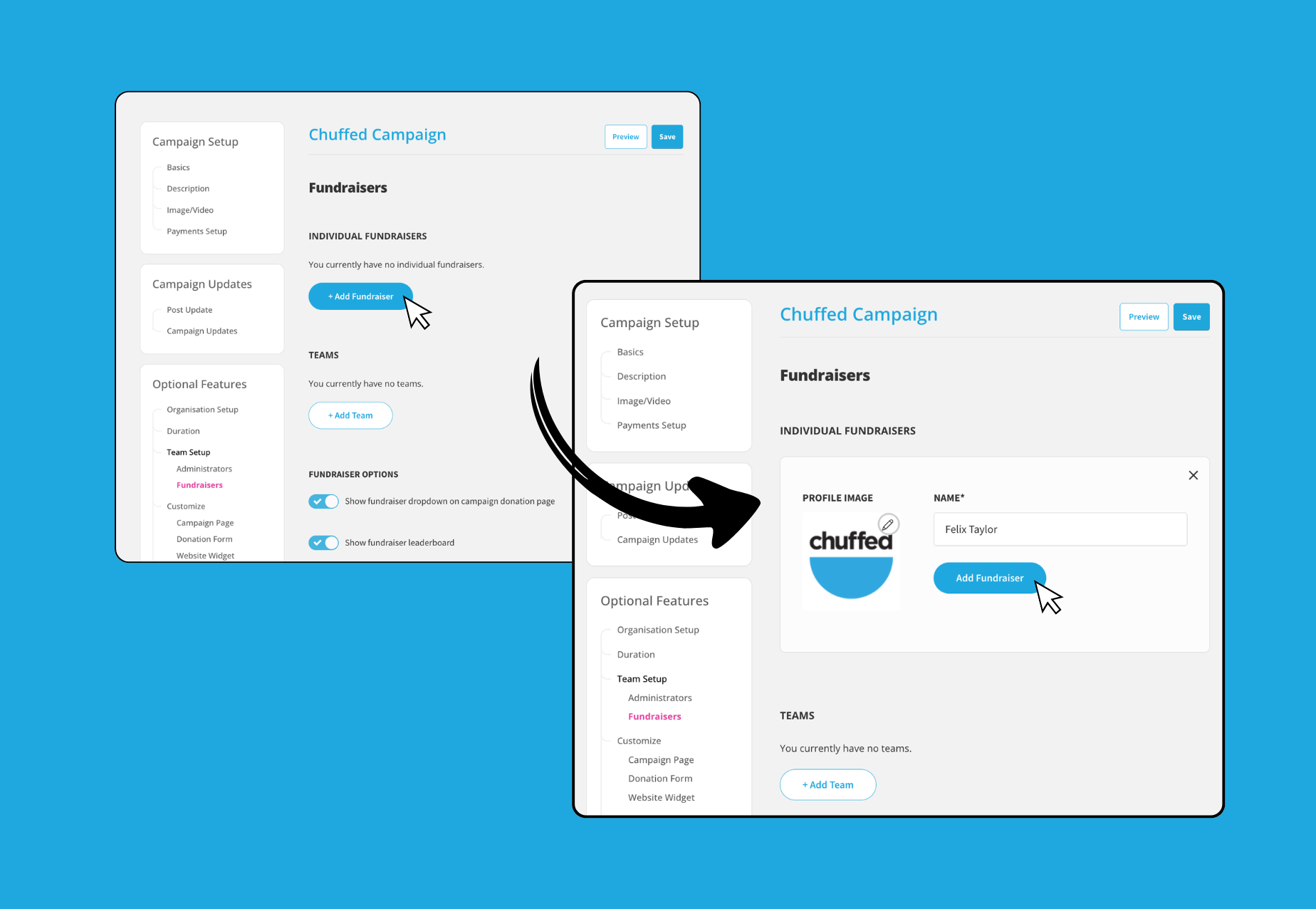
You should now see the Individual Fundraiser Page listed to preview and continue editing. For more steps on how to edit the Fundraiser Page check out our Managing Fundraiser & Team Pages support article.
Step 2: Invite the Fundraiser to edit their own Fundraiser page (optional)
You can invite the supporter to manage their own Fundraiser page and customise their details further.
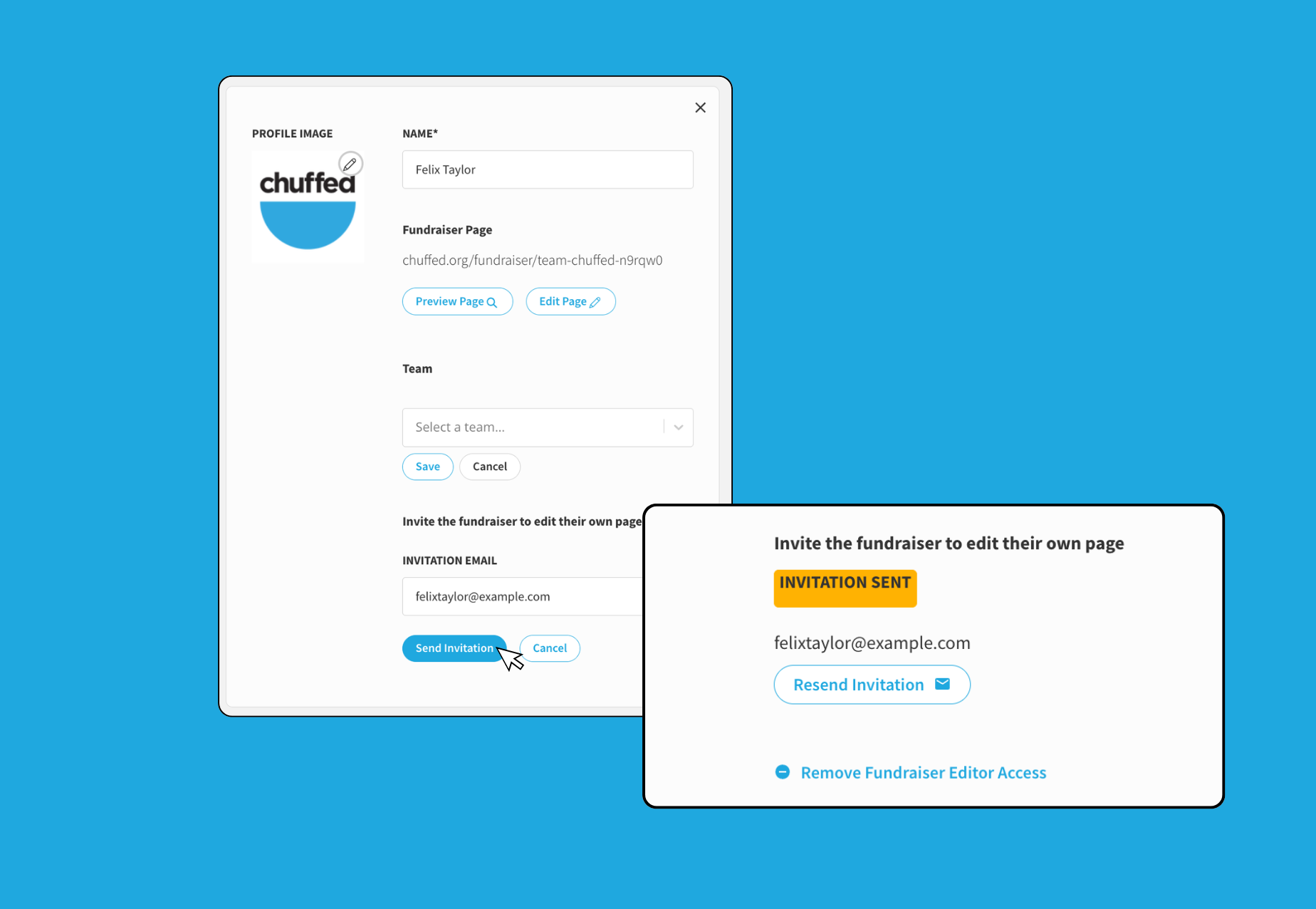
Click the Edit button to the right of the Fundraiser You should see the profile card expand to reveal more options
Click the Invite to be a Fundraiser Editor button
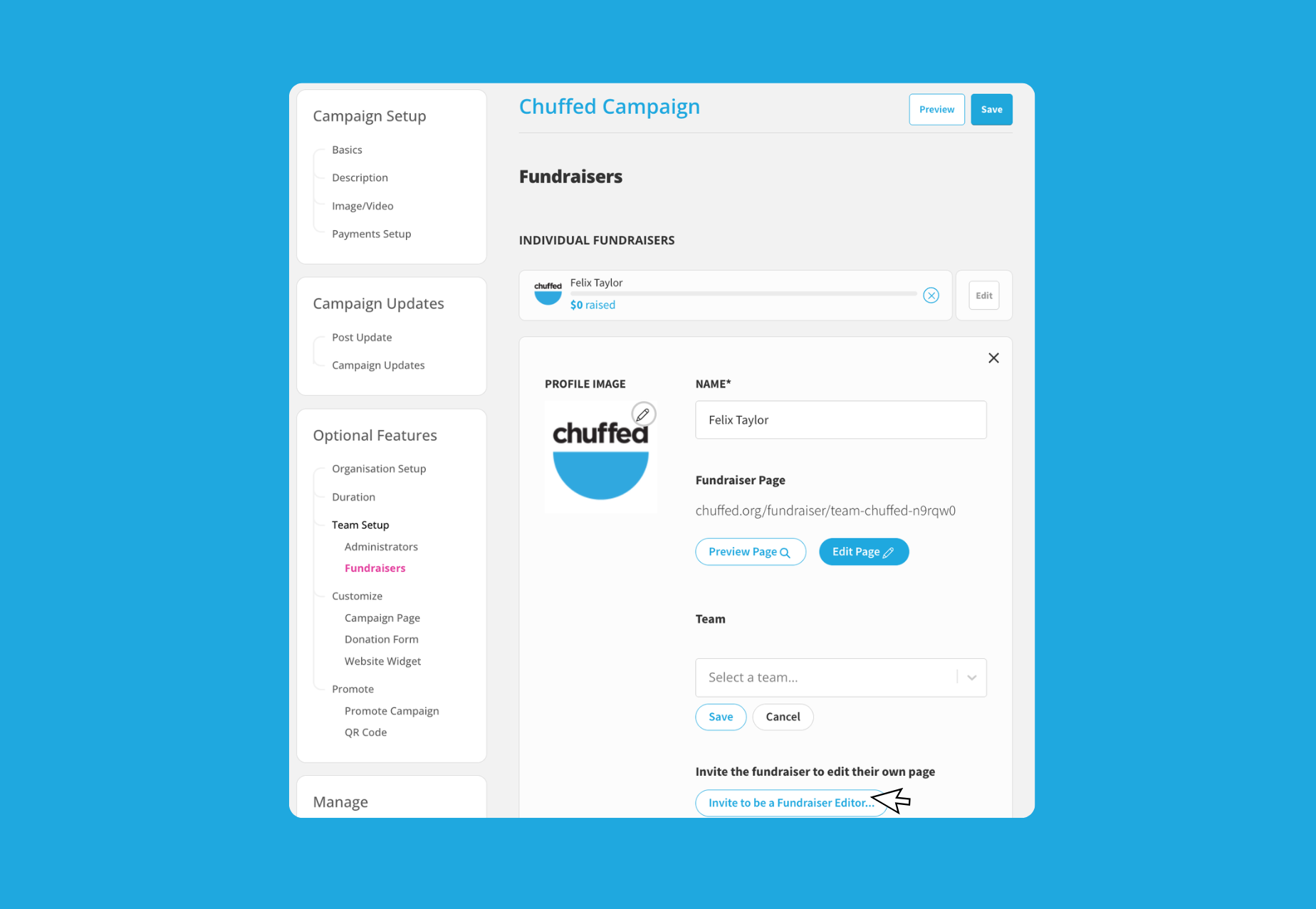
You can now enter the email address you would like to invite in the Invitation Email field
Click the Send Invitation button to send them an invite email
Once sent, you will see a yellow Invitation Sent notice confirming it’s been delivered
Creating Team pages
You can also create team pages on behalf of your supporters to get them started.
Open the campaign editor and ensure you are logged in
Select Fundraisers under Optional Features →Team Setup
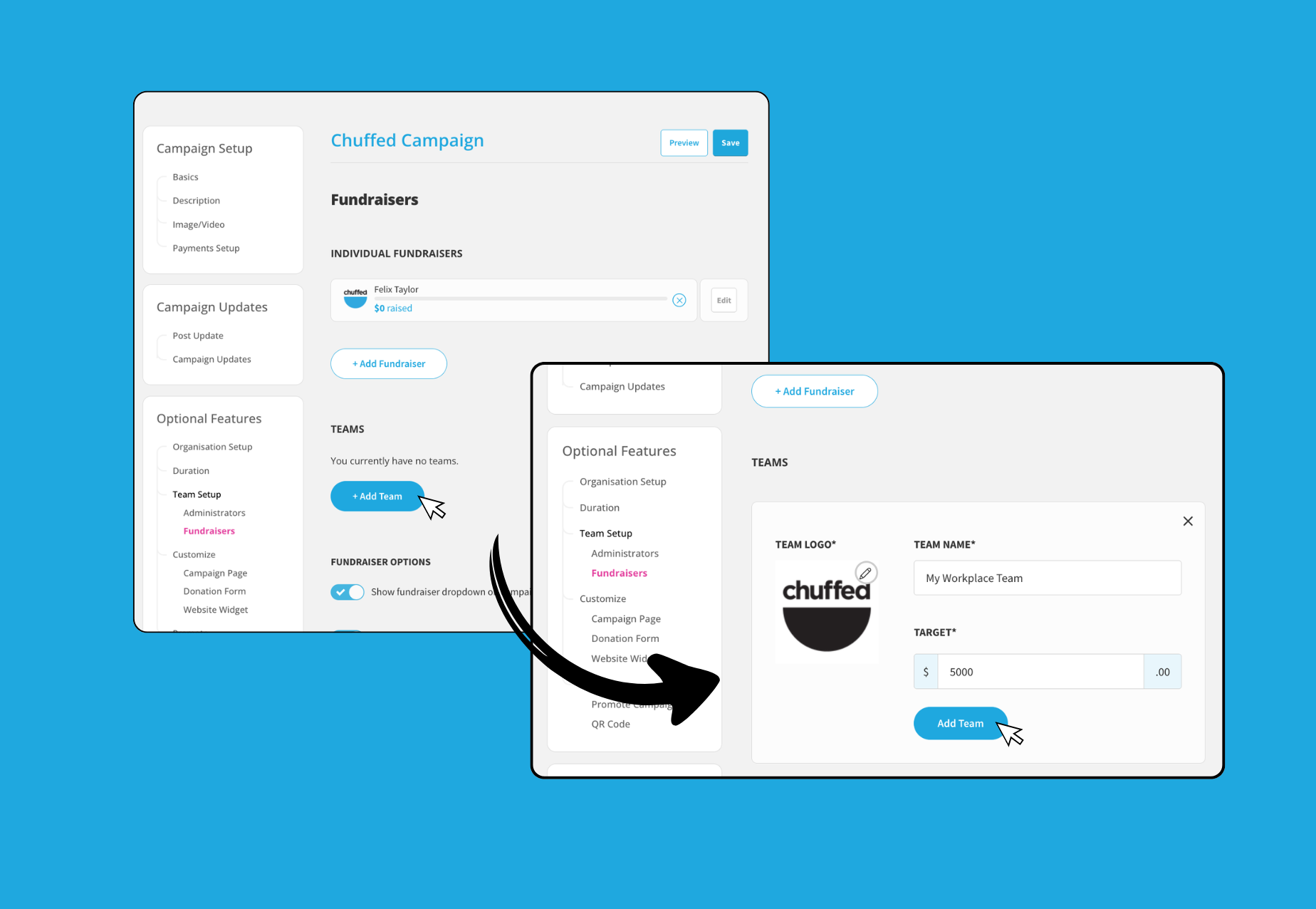
Click the ‘Add Team’ button under TEAM
You should see the Team page card expand
Update the Name field with the Team name
Upload a profile image if supplied
Click the ‘Add Team’ button to create your Team page
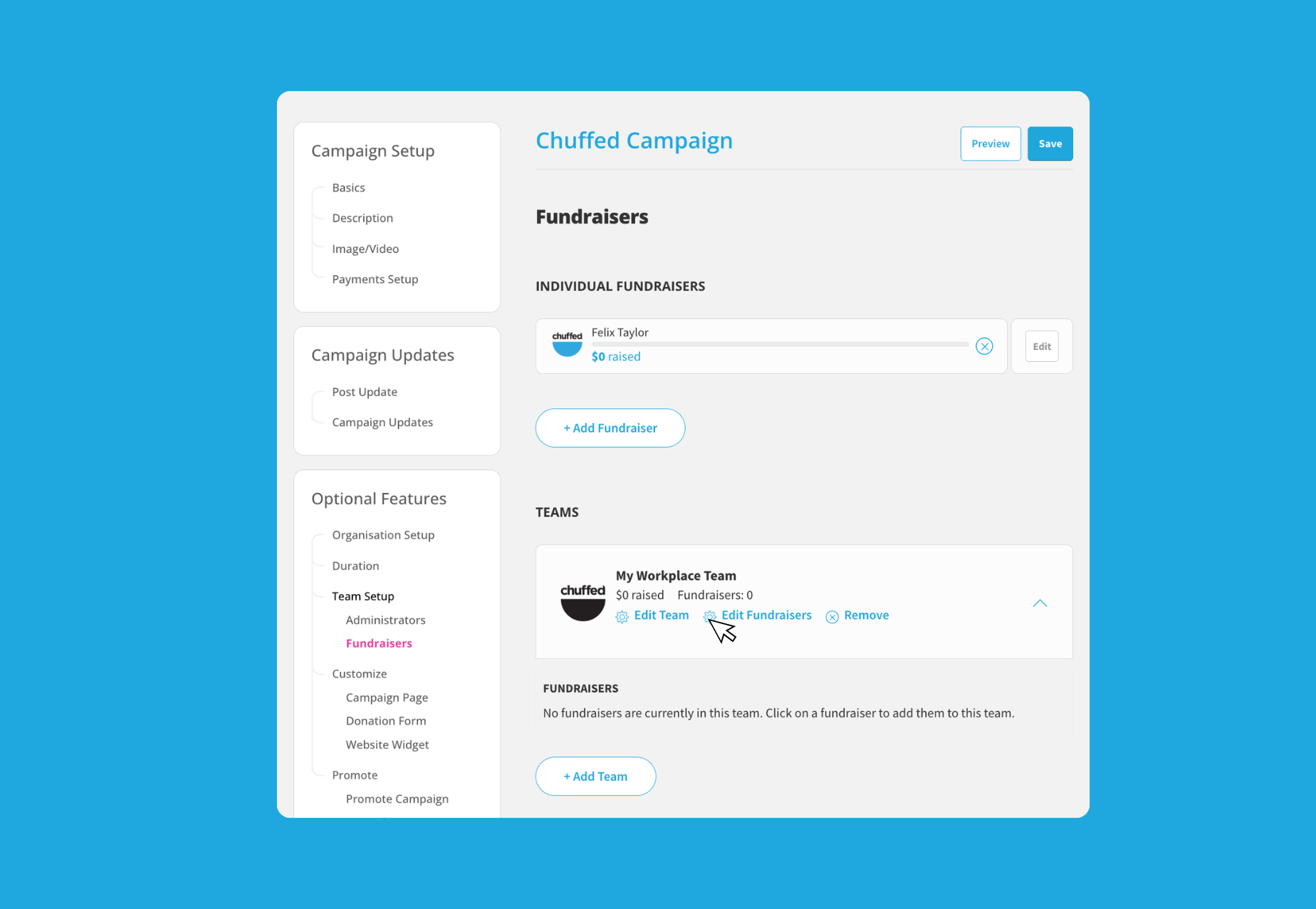
You should now see the Team Page listed for you to continue editing. You can click ‘Edit Team’ to manage the team page details or ‘Edit Fundraisers’ to assign an individual fundraiser to the team. To delete the team click ‘Remove’.
Already created your Fundraiser or Team page? Check out our guide to Managing Fundraiser & Team Pages.
Frequently Asked Questions
Why can’t I remove my Fundraiser or Team page?
If you aren’t able to remove the Fundraiser or Team page, this could be due to donations received. You are not able to delete or close any Fundraiser or Team page that has received donations for audit purposes. You can reach out to support@chuffed.org for further assistance.
Do I need to create a team?
No, teams are entirely optional and may not always be relevant to the campaign or supporters. If you do not need to represent a group or collective fundraising together, you won’t need to create a team.
How can I close my Fundraiser page?
Great question! Fundraiser pages are designed to stay open for as long as the main campaign is live and receiving donations. This means that there is no setting to close your fundraiser page or prevent it from receiving donations.
Understandably there may be special circumstances that require you to remove your fundraiser page. You can contact our Support Team at support@chuffed.org for more help.